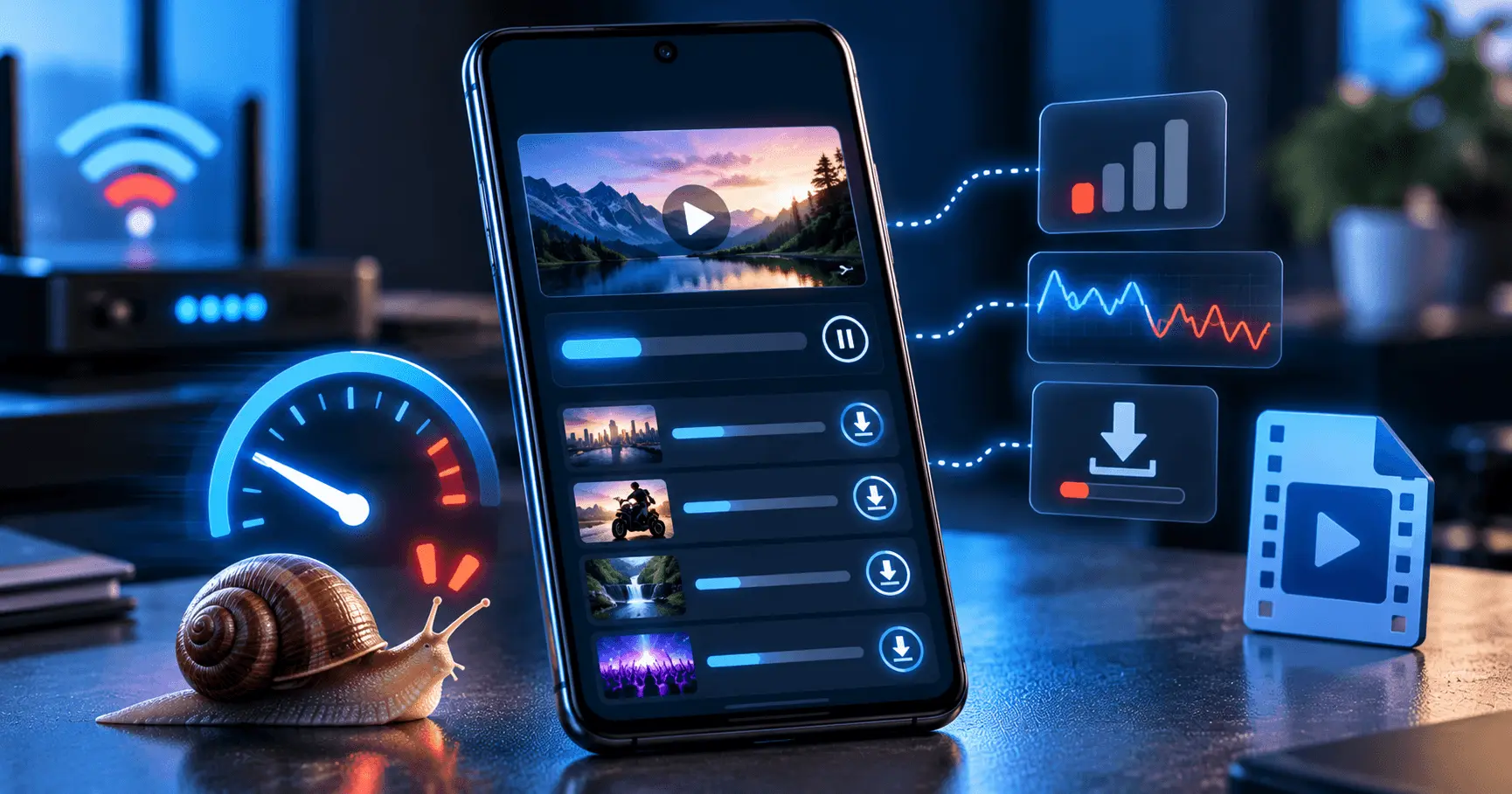
Slow download speed on Android can make saving videos frustrating, especially when a download that normally takes a few minutes suddenly takes much longer. The problem is not always caused by the downloader itself. Your internet connection, network conditions, source server, device storage, or app settings can all affect download performance.
If you are using a video downloader and notice unusually slow downloads, checking a few common causes can help you identify the problem. The best approach is to test the connection first and then review the Android device and downloader settings.
Application
Video URL Downloader
Category
FAQ Guide
Reading Time
8–10 Minutes
Difficulty
Beginner
Check Your Internet Connection First
The internet connection is one of the first things to check when download speed becomes slow. A weak Wi-Fi signal, unstable mobile data connection, or temporary network congestion can reduce the speed available to your Android device.
Try opening several websites or streaming a short video to see whether the connection is generally slow. If other online activities are also taking longer than usual, the issue may be related to your network rather than the video downloader.
Quick Connection Checks
- Check whether other apps are downloading data in the background.
- Move closer to your Wi-Fi router if the signal is weak.
- Try switching between Wi-Fi and mobile data when appropriate.
- Check whether other devices on the same network are using significant bandwidth.
- Retry the download after a short period if the network appears temporarily congested.
Wi-Fi Signal Strength Can Affect Download Speed
A fast internet connection does not always mean your phone will receive the same performance everywhere in your home or office. Distance from the router, walls, interference, and network congestion can affect Wi-Fi performance.
If your download becomes faster when you move closer to the router, the Wi-Fi signal may be contributing to the problem. You can also compare the download performance at different times to determine whether network congestion is involved.
Check Whether Other Apps Are Using Your Internet
Background activity can reduce the bandwidth available for a video download. App updates, cloud synchronization, photo backups, streaming services, and other downloads may all compete for the same connection.
Before starting a large video download, close unnecessary network-heavy activities when practical. This does not guarantee a specific download speed, but reducing competing traffic can make more bandwidth available to the download.
App Updates
Automatic updates can use network bandwidth while a download is running.
Cloud Sync
Photo and file synchronization can compete with large video downloads.
Streaming
Video and music streaming can consume available network bandwidth.
The Video Source Can Limit Download Speed
Download performance is not controlled entirely by your Android phone. The server hosting the video or the service providing the content may limit how quickly data can be delivered.
If other downloads work normally but one particular video remains slow, the source may be contributing to the problem. In that situation, changing Android settings may not significantly improve the speed.
Testing a different video or source can help you determine whether the problem affects all downloads or only a specific piece of content.
Check Available Storage on Your Android Phone
Low available storage can affect how comfortably your Android device handles large video downloads. A download may require enough free space for the completed file and, depending on how the downloader works, additional temporary space while the file is being processed.
Check your device storage before starting a large download. If storage is nearly full, remove unnecessary files or move important media to another suitable location before trying again.
Storage Checks
- Check how much free storage remains.
- Review large videos and duplicate files.
- Remove downloads you no longer need.
- Make sure there is enough space for the video you want to save.
Avoid Downloading Too Many Videos at Once
Running multiple large downloads simultaneously can divide the available network bandwidth between them. As a result, each individual download may appear slower than when only one file is being downloaded.
If you want the fastest possible speed for an important video, consider completing one large download before starting several others. A download queue can also help you manage multiple files without starting everything at the same time.
Check the Downloader's Download Settings
Some video downloader apps provide settings that can affect how downloads are handled. Depending on the application, you may find options related to simultaneous downloads, download location, network usage, or other download behavior.
Review the available settings if your downloads consistently appear slower than expected. Avoid changing options that you do not understand, and use the application's default settings as a starting point when troubleshooting.
Check Download Queue
See whether several files are downloading simultaneously and competing for available bandwidth.
Review Network Options
Check whether the downloader provides settings that control how downloads use the available network connection.
Keep the Video Downloader Updated
An outdated application can sometimes cause unexpected download behavior. Developers may release updates that improve compatibility, fix bugs, or improve the way the application handles downloads.
Check for an available update through the appropriate Android app store. After updating, retry the same download to see whether the behavior improves.
Restart Your Network Connection
A temporary network problem can sometimes result in slower-than-usual downloads. Restarting the connection can be a simple troubleshooting step when other online activities are also behaving unusually.
If you are using Wi-Fi, reconnecting to the network or restarting the router may help with temporary connectivity issues. For mobile data, briefly reconnecting the network can also be worth trying when appropriate.
Simple Troubleshooting Order
- Check whether other internet activities are slow.
- Check the Wi-Fi or mobile data connection.
- Pause unnecessary background downloads.
- Retry the video download.
- Test another video if the problem continues.
Check Battery and Background Restrictions
Android may manage background activity differently depending on the device, battery settings, and application configuration. If a download becomes slow or stops when the app is running in the background, check whether battery-saving or background restrictions are affecting the downloader.
These settings vary between Android versions and device manufacturers. Review the application's available battery and background activity settings if downloads do not continue normally when you leave the app.
Try a Different Network to Identify the Problem
If you have access to another reliable network, testing the same download can help narrow down the cause. For example, you can compare Wi-Fi and mobile data when both are available and appropriate to use.
If the download becomes significantly faster on another network, the original connection is more likely to be contributing to the slowdown. If the speed remains similar across different networks, investigate the source video, downloader settings, or device conditions.
Compare Different Downloads Before Changing Settings
Do not assume that every slow download has the same cause. Compare several videos and, when possible, different sources. This can help you determine whether the issue is specific to one video or affects downloads more generally.
What the Results Can Tell You
- Only one video is slow: the source or particular file may be affecting performance.
- Every download is slow: check your network, device, and downloader settings.
- Wi-Fi is slow but mobile data is faster: investigate the Wi-Fi connection.
- Speed changes during the day: network congestion may be contributing to the issue.
Keep Your Android Device Ready for Large Downloads
Large video downloads work best when your device has sufficient storage, a stable network connection, and enough available resources to handle the download. Keeping your Android phone reasonably organized can make troubleshooting easier when problems occur.
Regularly review unused downloads, keep the downloader updated, and avoid unnecessary simultaneous downloads. These simple habits can help maintain a smoother download experience over time.
Simple Ways to Improve Download Speed on Android
If your download speed is consistently lower than expected, start with the simplest changes rather than modifying many settings at once. A stable internet connection, sufficient storage, fewer simultaneous downloads, and an updated downloader can make troubleshooting much easier.
Use a Stable Connection
Choose a reliable Wi-Fi or mobile data connection and avoid downloading when the signal is unstable.
Reduce Network Competition
Pause unnecessary streaming, backups, updates, and other large network activities while downloading.
Keep Enough Storage Free
Remove unnecessary downloads and other large files when your Android storage is nearly full.
Avoid Too Many Downloads
Downloading fewer large files at the same time can help prevent available bandwidth from being divided between them.
Understand the Difference Between Internet Speed and Download Speed
Your internet connection may be capable of a high speed, but an individual video download may still run slower. Download performance depends on more than the maximum speed advertised by your internet provider.
The source server, network congestion, Wi-Fi conditions, device activity, and the downloader's behavior can all influence the actual speed you see during a particular download.
For this reason, a slower download does not automatically mean that your Android phone or downloader is faulty.
Do Not Rely on One Speed Test
A speed test can provide useful information about your connection, but it does not necessarily represent the exact speed you will receive from every video source. A download server may have different capacity, traffic levels, or delivery conditions.
Use speed tests as one troubleshooting reference rather than treating the result as a guarantee of the speed for every download. Comparing several downloads can provide additional information about where the problem may be occurring.
When Should You Restart the Download?
If a download becomes unusually slow and remains at a very low speed for an extended period, restarting it may be worth trying after checking the network connection. A temporary connection issue or source-side problem may have affected the original download session.
Before restarting a large download, consider whether the downloader supports resuming. If it does, resuming may be preferable to starting the entire file again.
When a Slow Download May Not Be a Problem With Your Phone
It is easy to assume that a slow video download means something is wrong with the Android device. However, the phone is only one part of the download process.
If your other internet activities work normally and downloads from different sources behave differently, the source server or network path may be responsible. In such cases, repeatedly changing Android settings may not improve the result.
Consider the Whole Download Path
- Your Android device and its current network connection.
- The Wi-Fi or mobile network being used.
- The internet route between the device and source.
- The server providing the video.
- The downloader's handling of the download.
Frequently Asked Questions
Conclusion
Slow download speed on Android can have several causes, so changing one setting is not always the solution. Start by checking your internet connection, background network activity, available storage, simultaneous downloads, and the video source.
If the problem continues, compare different downloads and networks to identify where the slowdown occurs. Keeping your Android device and downloader updated and maintaining enough free storage can also help create a more reliable environment for saving videos offline.