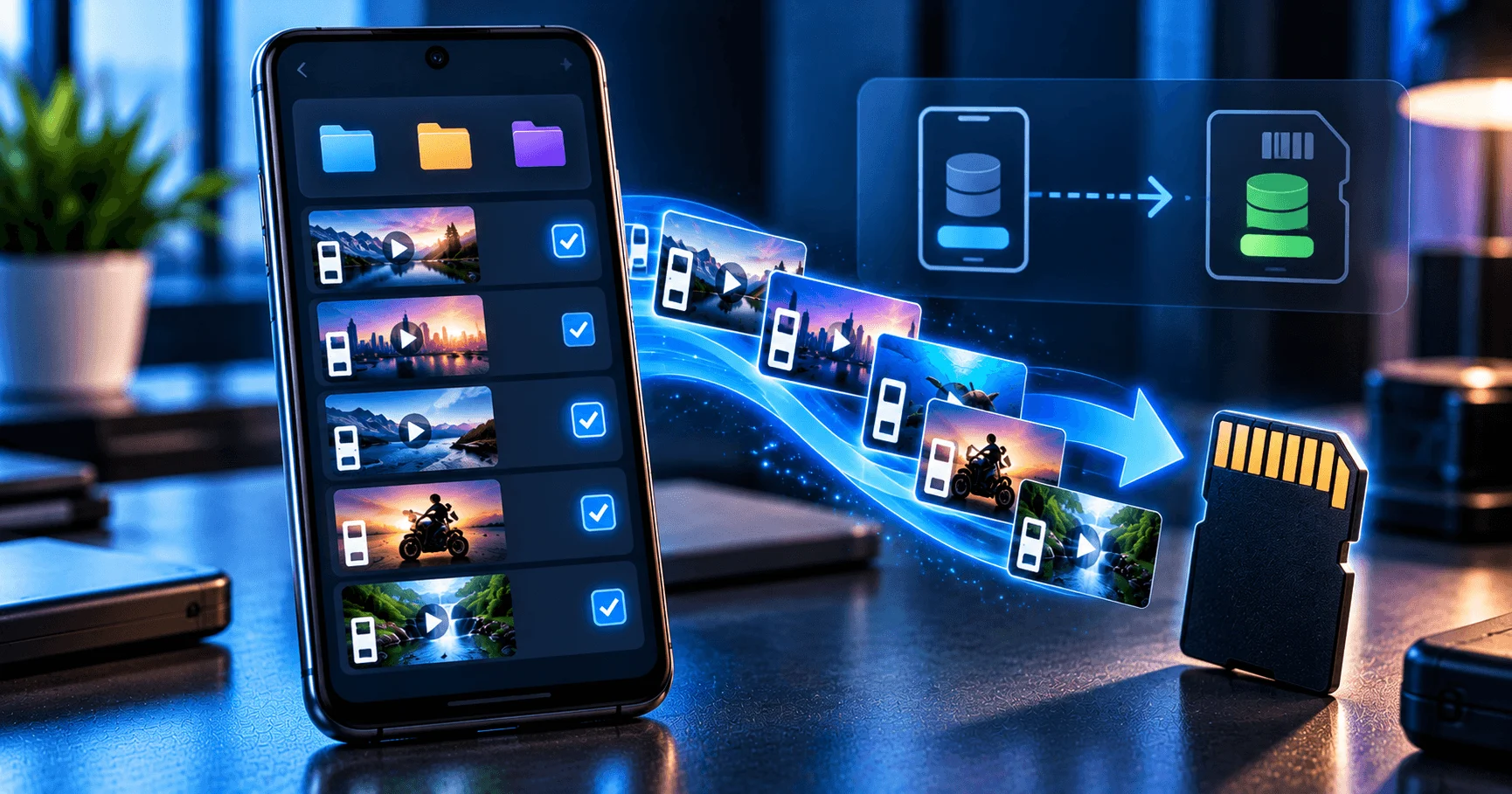
Why Move Downloaded Videos to an SD Card?
Downloaded videos can quickly use a large amount of internal phone storage, especially when you regularly save HD or high-quality files. Moving older or less frequently used videos to an SD card can help keep your Android device's internal storage available for applications, photos, updates, and everyday files.
An SD card can also make it easier to keep downloaded videos in a dedicated storage location. Before moving anything, however, check your phone's storage settings and make sure the SD card is properly inserted and recognized.
Application
Video URL Downloader
Category
Storage Guide
Reading Time
8–10 Minutes
Difficulty
Beginner
Check Whether Your Android Phone Supports an SD Card
Not every Android phone has a physical microSD card slot. Before planning your video storage, check whether your device supports expandable storage and whether an SD card is already installed.
You can usually check the phone's specifications, storage settings, or the device manufacturer's documentation. If your phone does not support an SD card, use another storage option such as a computer or supported cloud storage service instead.
- Check whether your phone has a microSD card slot.
- Confirm that the SD card is detected by Android.
- Check the available space on the card.
- Make sure the card has enough capacity for the videos you want to move.
Check the Available SD Card Storage
Before transferring downloaded videos, check how much free space is available on the SD card. Large video files can consume storage quickly, so knowing the available capacity helps you avoid interrupted transfers.
Open your Android storage settings or file manager and review the SD card's available space. If the card is nearly full, remove unnecessary files or move older content elsewhere before starting a large transfer.
Check Free Space
Confirm that enough storage is available for the videos you plan to transfer.
Review Large Files
Identify large videos and other files that may be using most of the SD card capacity.
Keep Extra Space
Avoid filling the card completely so future downloads and file operations have room.
Find Your Downloaded Video Files
Before moving videos, identify where your downloaded files are stored. Depending on the application and Android device, downloaded videos may be located in a dedicated download folder or another folder selected by the downloader.
Use your phone's file manager to locate the videos. Check the file names, sizes, and dates so you can select the correct files instead of accidentally moving unrelated media.
- Open your Android file manager.
- Look for the folder used by your video downloader.
- Check file names and video sizes before selecting files.
- Group related downloads together when practical.
Move Downloaded Videos Using a File Manager
The simplest way to transfer downloaded videos is usually through an Android file manager that supports moving files between internal storage and an SD card. The exact menu names can vary between Android versions and device manufacturers.
- Open the file manager on your Android phone.
- Navigate to the folder containing your downloaded videos.
- Select one or more video files.
- Choose the Move option from the file manager menu.
- Open the SD card storage location.
- Choose an appropriate destination folder.
- Confirm the move and wait until the transfer is complete.
For large video collections, allow the transfer to finish before closing the file manager or removing the SD card.
Choose a Suitable Folder on the SD Card
Keeping downloaded videos in a dedicated folder makes them easier to find later. Instead of placing files in multiple locations, create a simple folder structure that matches how you normally organize your videos.
For example, you can use a main folder for downloaded videos and create additional folders for different categories, projects, or types of content. Keep the structure simple so you can locate files quickly from your Android file manager.
- Create a dedicated folder for downloaded videos.
- Use clear folder names that are easy to recognize.
- Group related videos together when useful.
- Avoid creating too many nested folders.
Move Large Videos First When Storage Is Limited
If your phone's internal storage is almost full, moving large downloaded videos first can quickly free up useful space. High-resolution videos often take much more storage than smaller files, so they can be a practical starting point.
Review the video file sizes in your file manager and select the files that are taking the most internal storage. Move them to the SD card in manageable groups rather than trying to transfer an extremely large collection at once.
Prioritize These Files
- Large HD or high-quality videos.
- Videos you want to keep but do not watch frequently.
- Older downloaded videos occupying internal storage.
- Video collections that are already organized into folders.
Verify Videos After Moving Them
Do not immediately delete the original files or remove the SD card after starting a transfer. First, confirm that the moved videos are available at the new location and can be opened correctly.
Open a few transferred videos from the SD card and check that they play normally. If you moved an important collection, verify several files from different folders before relying on the SD card as the only copy.
- Open the destination folder on the SD card.
- Check that the expected video files are present.
- Open a few videos and confirm they play correctly.
- Check that file names and folders are still organized.
- Only then continue with additional storage cleanup.
Avoid Removing the SD Card During a Transfer
Large video transfers can take time, particularly when many files are being moved. Avoid removing the SD card while Android is actively transferring files because an incomplete operation may leave files unavailable or require the transfer to be repeated.
Keep your phone connected to a stable power source when moving a large video collection and wait for the file manager to confirm that the operation has finished.
Safe Transfer Habits
- Wait for the transfer to finish completely.
- Do not remove the SD card during file operations.
- Keep enough free space on the destination card.
- Avoid starting several large file operations at the same time.
- Verify important files after the transfer.
Change Download Storage Settings When Supported
Some Android download applications provide an option to choose where downloaded files are stored. If your device and application support SD card storage, selecting a suitable storage location can reduce the need to move videos manually later.
Check the downloader's storage or download settings and review the available destination options. The exact settings depend on the application, Android version, and storage configuration of your phone.
With Video URL Downloader, keeping your downloaded video storage organized can make it easier to manage large collections and keep internal phone storage available for other tasks.
Keep Your SD Card Organized Over Time
Moving videos to an SD card is most useful when the storage remains organized. As your collection grows, periodically review the files and remove videos you no longer need or move important files to another backup location.
A simple organization routine can make future downloads easier to manage and help prevent the SD card from becoming difficult to navigate.
- Review downloaded videos regularly.
- Remove unnecessary duplicate files.
- Keep related videos in the same folder.
- Use clear file and folder names.
- Keep another backup of important videos when possible.
FAQ
Conclusion
Moving downloaded videos to an SD card can be a practical way to manage large video collections and keep your Android phone's internal storage available. Start by checking SD card compatibility and available space, then use a file manager to transfer videos to a clearly organized folder.
Always verify important videos after moving them and avoid removing the SD card while files are being transferred. With a simple storage routine, you can keep downloaded videos organized and make better use of your available Android storage.