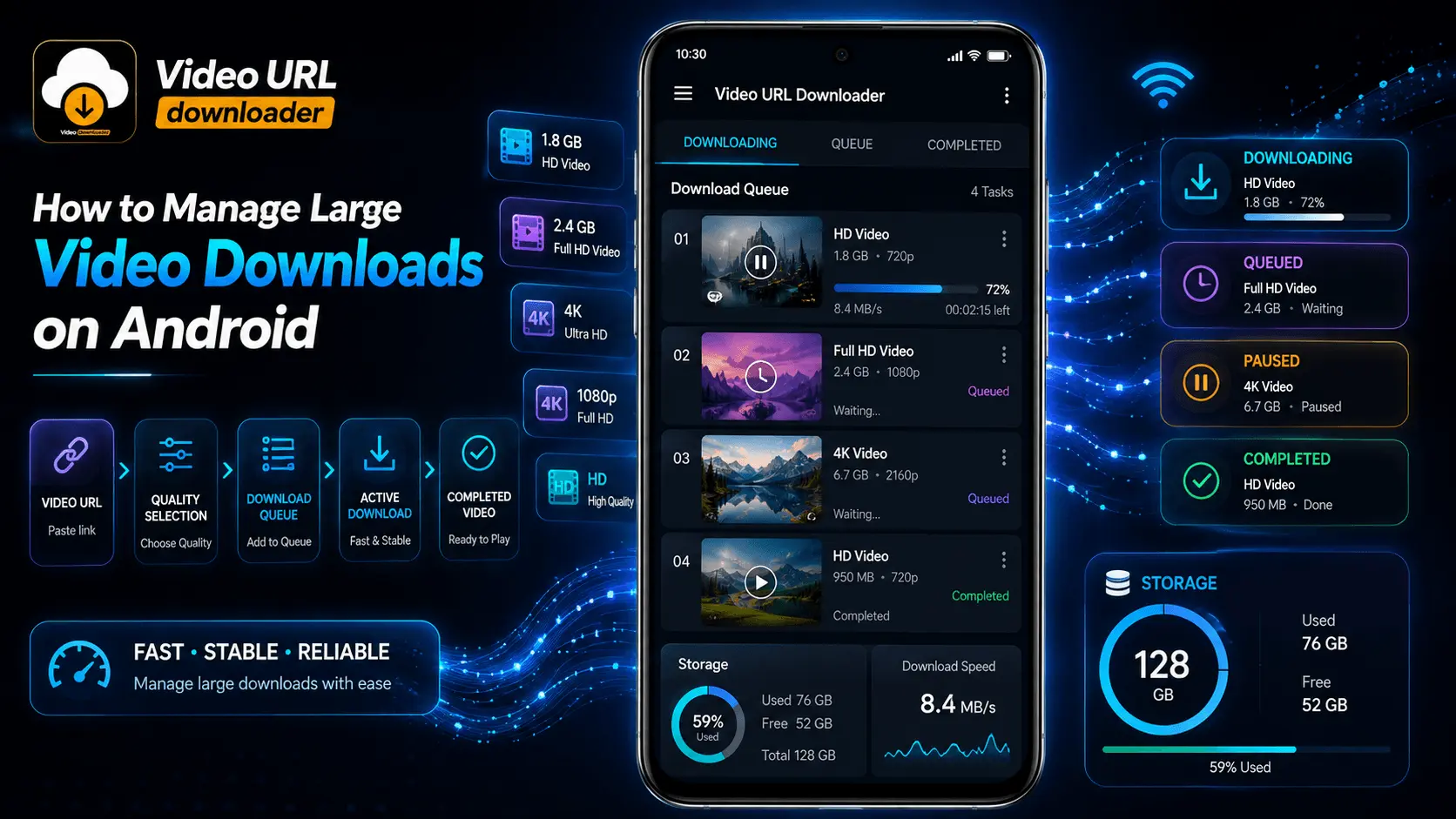
Video URL Downloader
Android Guide
Android
Large Downloads
Downloading a short video on Android is usually simple, but managing several large video files can become more complicated. High-resolution videos can consume significant storage, take longer to download, use more network data, and create a crowded download folder if they are not organized properly.
Large downloads also need a little more planning. A download that works perfectly for a small file may become inconvenient when you are saving multiple Full HD or 4K videos. You may need to prioritize downloads, pause a transfer, resume an interrupted download, monitor storage, or remove files that are no longer required.
Android users can make this process much easier by using a structured download workflow. Instead of starting every available video at the same time, you can organize your queue, choose appropriate quality settings, monitor progress, and keep enough storage available for new files.
This guide explains practical ways to manage large video downloads on Android, including download queues, storage planning, network usage, pause and resume support, file organization, notifications, and common troubleshooting steps.
- Why Large Video Downloads Need Better Management
- Check Android Storage Before Downloading
- Understand Video File Sizes
- Create a Download Priority System
- Use a Download Queue
- Manage Multiple Video Downloads
- Continue: Network and Android Settings
Why Large Video Downloads Need Better Management
A large video can take considerably more time and storage than a standard-quality file. When multiple downloads are running together, the combined storage requirement and network usage can increase quickly.
Managing large downloads is therefore less about simply starting a download and more about controlling the entire process. You need to know what is downloading, what is waiting, how much space is available, and which files are most important.
| Challenge | Why It Matters |
|---|---|
| Large file size | Can consume significant device storage. |
| Long download time | More opportunity for network interruptions. |
| Multiple downloads | Can increase network and storage usage quickly. |
| Limited storage | Can cause downloads to fail before completion. |
| Background restrictions | Android may affect long-running background activity depending on device settings. |
| File organization | Large download folders can become difficult to manage. |
Check Android Storage Before Downloading
Storage is one of the first things you should check before starting a large video download. A video can require several gigabytes depending on its resolution, duration, bitrate, codec, and format.
Do not plan your download based only on the displayed size of one file. Leave additional free space for Android, temporary files, application data, thumbnails, and other system operations.
Avoid filling your phone's storage close to its maximum capacity. Keep a reasonable amount of free space available before starting several large downloads.
Understand What Makes a Video File Large
Video resolution is only one factor that affects file size. A long 1080p video can be larger than a short 4K clip, while two videos with the same resolution can have very different file sizes because of bitrate and encoding settings.
| Factor | Effect on File Size |
|---|---|
| Resolution | Higher resolutions generally contain more image data. |
| Duration | Longer videos generally require more storage. |
| Bitrate | Higher bitrate generally increases the amount of stored video data. |
| Frame Rate | Higher frame rates can require additional data. |
| Codec | Different codecs can produce different file sizes at similar quality levels. |
| Audio Quality | Higher-quality audio also contributes to total file size. |
Choose the Right Quality Before Starting a Download
One of the easiest ways to manage storage is to select an appropriate video quality before downloading. You do not always need the highest available resolution.
For everyday smartphone viewing, 1080p can provide an excellent balance between image quality and storage. Higher resolutions can be useful when the source genuinely provides additional detail and you plan to view the file on a suitable display.
720p HD
Useful when storage efficiency is important while retaining good HD quality.
1080p Full HD
A practical choice for many Android phones and everyday offline viewing.
4K
Suitable when genuine 4K source quality is available and the additional storage is worthwhile.
Create a Download Priority System
When you have several large videos to download, it is useful to decide which files should be downloaded first. This prevents your device from starting too many large transfers at once and makes it easier to manage available storage.
For example, you might prioritize a video needed immediately, followed by videos that are smaller or easier to complete. Very large 4K files can be scheduled later when you have enough storage and a suitable network connection.
Simple Priority Levels
- High Priority: Videos you need immediately.
- Normal Priority: Regular videos for offline viewing.
- Low Priority: Large files that can wait for a better connection or more storage.
Use a Download Queue for Multiple Videos
A download queue lets you organize multiple videos without requiring every file to transfer simultaneously. Instead of starting ten large downloads at once, you can place them in an ordered list and process them according to priority.
Queue-based downloading can make bandwidth usage more predictable and can simplify progress monitoring. It can also help reduce the number of partially completed files when the device or network has limited resources.
| Queue Status | Meaning |
|---|---|
| Downloading | The current file is actively transferring. |
| Queued | The file is waiting for its turn. |
| Paused | The transfer has been temporarily stopped. |
| Completed | The file has finished downloading. |
| Failed | The transfer could not complete and may require retrying. |
Manage Multiple Large Downloads Carefully
Downloading multiple videos simultaneously can be convenient, but it is not always the best option. Several large transfers compete for network bandwidth and can make each individual download slower.
If your connection is limited or your phone is handling other demanding tasks, sequential downloading may provide a simpler and more predictable experience.
Use a queue when you have many large videos. Increase the number of simultaneous downloads only when your connection and device can comfortably handle them.
Monitor Download Progress
Progress information becomes especially useful when downloading large files. A good download interface should make it easy to see the current progress, estimated file size, download speed, and remaining work.
Progress
Shows how much of the file has completed.
Speed
Shows the current transfer rate.
File Size
Shows how much data is being transferred.
Status
Shows whether the download is active, paused, or complete.
Start With an Organized Download Workflow
Large video downloads become much easier when you plan storage, choose appropriate quality, prioritize files, and use a queue instead of starting everything at once.
The next section covers Wi-Fi and mobile data management, pause and resume downloads, Android battery and background settings, notifications, storage organization, and handling interrupted downloads.
Manage Wi-Fi and Mobile Data for Large Downloads
Large video downloads can consume a significant amount of internet data. A Full HD or 4K video may be much larger than a typical web page or image, so choosing the right network connection can make a major difference to your data usage.
When possible, use a reliable Wi-Fi connection for large downloads. If you need to use mobile data, check your data allowance first and avoid starting several high-resolution downloads at the same time.
| Connection | Recommended Use | What to Watch |
|---|---|---|
| Home Wi-Fi | Large HD and 4K downloads | Connection stability |
| Mobile Data | Smaller or urgent downloads | Data allowance |
| Public Wi-Fi | Only when appropriate and trusted | Security and reliability |
| Weak Connection | Avoid large downloads when possible | Interruptions and slow speeds |
Use Pause and Resume for Large Downloads
Large files can take a long time to download. A pause and resume feature can make the process much easier when you need to temporarily stop a transfer because of network conditions, battery level, storage management, or another task.
When supported by the downloader and the source, a resumable download can continue from the available progress instead of requiring the entire file to be downloaded again.
When Pausing Can Be Useful
- Your mobile data allowance is getting low.
- You need to free storage before continuing.
- Your battery level is low.
- Another download needs higher priority.
- Your network connection is temporarily unstable.
What to Do When a Large Download Is Interrupted
An interrupted download does not always mean that you have to start from zero. If the downloader and server support resuming, the transfer may be able to continue from a previously downloaded portion.
Before restarting the download manually, check its current status. Look for an option such as Resume, Retry, Continue, or Restart depending on the application.
| Situation | Recommended Action |
|---|---|
| Temporary network interruption | Wait for the connection and try Resume. |
| Download paused | Resume when conditions are suitable. |
| Storage became full | Free space before continuing. |
| Source is unavailable | Retry later if the source becomes accessible. |
| File is corrupted | Remove the incomplete file and start a fresh download if necessary. |
Manage Battery Usage During Long Downloads
Large downloads can take considerable time, particularly when the file is large or the network is slow. Your Android device may also apply battery-saving or background restrictions to applications that remain active for a long period.
If a download stops unexpectedly while the application is running in the background, check the battery and background activity settings for the downloader. The exact options vary between Android versions and manufacturers.
For important long downloads, check that Android is not aggressively restricting the downloader's background activity.
Keep Large Downloads Running in the Background
Background downloading is useful when you want to continue using your phone while a large file is being transferred. However, Android device manufacturers may apply different background management rules.
If a download repeatedly stops after leaving the downloader screen, review the application's battery optimization, background activity, data usage, and notification permissions where applicable.
| Setting to Check | Why It Can Matter |
|---|---|
| Battery Optimization | May affect long-running background activity. |
| Background Activity | Can influence whether downloads continue after leaving the app. |
| Data Usage | May restrict downloads when mobile data is being used. |
| Notifications | Can provide download progress and completion information. |
Use Download Notifications to Track Large Files
Notifications can be particularly useful when a download takes several minutes or longer. Instead of repeatedly opening the application, you can check the notification area for progress and completion information.
A useful download notification can show the current progress, download status, and completion state. Depending on the application, it may also provide actions such as pause, resume, cancel, or open the completed file.
Useful Download Notification Information
- File name.
- Download progress.
- Current status.
- Completion indication.
- Available download actions where supported.
Organize Large Video Files After Downloading
A well-organized storage system becomes increasingly important as your collection grows. If dozens of large videos are stored in a single folder, finding a particular file can become difficult.
Use meaningful categories or folders based on your own needs. For example, you could separate educational videos, entertainment, personal recordings, tutorials, or other content that you are permitted to store.
By Category
Group videos according to their purpose or content type.
By Project
Keep files related to the same project together.
By Date
Useful when you regularly download temporary content.
Use Meaningful File Names
Descriptive filenames can make a large video collection easier to search. If the downloader automatically generates complicated filenames, rename files after the download when appropriate.
| Less Useful | More Useful |
|---|---|
| video_001.mp4 | Android-Tutorial-1080p.mp4 |
| download123.mp4 | Project-Video-August-2026.mp4 |
| VID_78452.mp4 | Travel-Video-Part-1.mp4 |
Use names that make sense to you while avoiding unnecessary characters that may cause compatibility issues with certain file systems or applications.
Remove Unnecessary Large Downloads
Storage management should continue after a download is complete. Large videos that you no longer need can consume space for months if they are never reviewed.
Periodically check your largest video files and remove duplicates, incomplete downloads, temporary files, and videos that you have finished using.
Make sure the file is no longer needed and that you have another copy if it is important.
Keep Your Download Queue Under Control
A queue can become difficult to manage when it contains dozens of large files. Review the list periodically and remove downloads that are no longer needed.
Good Queue Management Habits
- Remove duplicate URLs.
- Prioritize important downloads.
- Pause low-priority downloads when necessary.
- Remove failed items that cannot be retried.
- Check storage before adding several large files.
- Avoid maintaining a very large list of downloads you no longer intend to complete.
Control Data Usage When Downloading Large Videos
If your mobile plan has a limited data allowance, large video downloads can consume it quickly. A queue with multiple 1080p or 4K files can use a substantial amount of data in a short period.
Consider downloading large files over a suitable Wi-Fi connection when possible. If you must use mobile data, review the expected file size and prioritize only the files you actually need.
| Habit | Benefit |
|---|---|
| Use Wi-Fi for large files | Helps reduce mobile-data consumption. |
| Choose appropriate resolution | Can reduce unnecessary file size. |
| Limit simultaneous downloads | Makes bandwidth usage easier to control. |
| Review file size before starting | Prevents unexpected large transfers. |
A Good Download Manager Is About More Than Speed
Managing large downloads successfully means controlling storage, network usage, queue priority, background activity, and completed files. The fastest possible download is not always the most useful one if it fills your storage or consumes your entire mobile data allowance.
The final section covers a complete large-download workflow, troubleshooting, practical Android settings, storage cleanup, best practices, FAQs, and the final Video URL Downloader CTA.
A Complete Workflow for Managing Large Video Downloads
The easiest way to manage large video downloads on Android is to follow a repeatable workflow. Instead of downloading files randomly, decide what you need, select the appropriate quality, check available storage, and then add the files to an organized queue.
This approach becomes particularly useful when downloading several videos for offline viewing, travel, study, work, or other legitimate personal uses. It also makes it easier to identify problems before a large download fails.
Recommended Workflow
- Choose the video. Confirm that you have permission to download and store the content.
- Check the available quality. Select an appropriate resolution and format.
- Check the estimated file size. Make sure enough storage is available.
- Choose the network. Prefer a reliable connection for very large files.
- Add the download to the queue. Prioritize it according to your needs.
- Monitor the transfer. Check progress, speed, and status.
- Verify completion. Confirm that the downloaded file opens correctly.
- Organize the file. Move or rename it if necessary.
Plan Storage Before Downloading Several Videos
Storage planning becomes increasingly important as video quality increases. A collection of several large Full HD or 4K files can consume a substantial amount of space.
Before starting a batch of downloads, estimate the combined size of the files and compare it with your available storage. Do not forget that Android and other applications also require free space.
| Planning Step | What to Check |
|---|---|
| 1. Check storage | Review available device space. |
| 2. Estimate downloads | Check the expected size of each video. |
| 3. Add extra space | Leave room for Android and other applications. |
| 4. Start downloads | Use the queue according to available capacity. |
| 5. Review completed files | Remove files you no longer need. |
Choose a Suitable Video Format
Video format can affect compatibility, file size, and playback support. The best choice depends on the Android devices and applications where you plan to use the downloaded file.
For general offline playback, a widely supported format can be more convenient than choosing a format simply because it is available. Always consider compatibility with your gallery application, media player, editing software, or other intended destination.
| Consideration | Why It Matters |
|---|---|
| Compatibility | The file should play correctly on your intended device or application. |
| Quality | The selected format should preserve the quality you actually need. |
| File Size | Different encoding settings can affect storage requirements. |
| Editing | Consider compatibility if you plan to edit the video later. |
Troubleshooting Large Video Downloads on Android
Large downloads can fail for several reasons. The most common causes include insufficient storage, unstable network connectivity, application restrictions, unavailable sources, and interrupted background activity.
| Problem | Possible Cause | What to Try |
|---|---|---|
| Download stops | Network interruption | Check the connection and use Resume or Retry when supported. |
| Download fails immediately | Invalid or unavailable source | Verify the source and try again later if appropriate. |
| Storage error | Insufficient free space | Free storage and retry the download. |
| Background download stops | Android background restrictions | Review battery and background activity settings. |
| Download is very slow | Network congestion or weak connection | Try a more reliable connection or reduce simultaneous downloads. |
| File will not play | Unsupported or incomplete file | Verify completion and use a compatible media player. |
What to Do When a Large Download Is Too Slow
Download speed can change throughout a transfer. Server-side limitations, network congestion, Wi-Fi signal strength, mobile network conditions, and the number of simultaneous downloads can all affect performance.
If a download is slower than expected, first check whether other downloads are consuming bandwidth. Reducing simultaneous transfers can sometimes make the overall process easier to manage.
Quick Speed Checklist
- Check your Wi-Fi or mobile connection.
- Move closer to your Wi-Fi access point if the signal is weak.
- Reduce the number of simultaneous downloads.
- Pause unnecessary network-heavy applications.
- Try again later if the source or network is congested.
Verify Large Videos After Downloading
A download should not be considered complete simply because the progress indicator reached 100 percent. It is useful to confirm that the file is present, has a reasonable file size, and can be opened correctly.
- Open your Android file manager or media library.
- Locate the downloaded video.
- Check the file size.
- Open the video and confirm that playback starts correctly.
- If the file is incomplete or damaged, remove it and retry the download when necessary.
Make Storage Cleanup Part of Your Routine
Large video files are easy to forget after they have served their purpose. A regular storage review can prevent old downloads from consuming valuable space.
Remove Duplicates
Delete duplicate copies of videos that are already stored elsewhere.
Delete Temporary Files
Remove incomplete or failed downloads when they are no longer useful.
Archive Important Videos
Move important files to appropriate long-term storage when available.
Best Practices for Managing Large Video Downloads
| Best Practice | Why It Helps |
|---|---|
| Check storage first | Reduces the risk of storage-related failures. |
| Select appropriate quality | Balances visual quality and file size. |
| Use a download queue | Keeps multiple downloads organized. |
| Limit simultaneous transfers | Makes bandwidth easier to manage. |
| Prefer reliable networks | Can reduce interruptions during large transfers. |
| Use pause and resume when supported | Provides more flexibility for long downloads. |
| Monitor notifications | Makes it easier to track long-running downloads. |
| Organize completed files | Makes large video collections easier to navigate. |
| Clean old downloads | Keeps storage available for future files. |
Large Video Download Checklist
- ✓ Confirm that you are permitted to download the content.
- ✓ Check available storage before starting.
- ✓ Review the estimated video size.
- ✓ Choose a suitable resolution.
- ✓ Select an appropriate format.
- ✓ Use a reliable network connection.
- ✓ Add multiple files to an organized queue.
- ✓ Avoid unnecessary simultaneous downloads.
- ✓ Monitor progress and download status.
- ✓ Check Android background restrictions if necessary.
- ✓ Verify the completed file.
- ✓ Organize and rename files where useful.
- ✓ Remove unnecessary large downloads regularly.
Conclusion
Managing large video downloads on Android is much easier when you treat downloading as an organized process rather than simply pressing a download button. Storage, video quality, network usage, download priority, and file organization all play an important role.
For large files, start by checking available storage and choosing a quality level that matches your actual needs. Use a queue when downloading several videos, limit simultaneous transfers when bandwidth is limited, and take advantage of pause and resume features when they are supported.
Android's battery and background-management settings can also affect long-running downloads. If a transfer stops after you leave the application, review the relevant device settings and make sure the downloader has the permissions and background access it requires.
Finally, keep your downloaded videos organized. Verify completed files, remove failed or unnecessary downloads, and regularly review large files that are consuming storage.
With a simple workflow and a capable download manager, even a large collection of HD and 4K videos can remain manageable on an Android device.
Frequently Asked Questions
Manage Your Video Downloads More Easily
Use Video URL Downloader to organize video downloads on Android with practical download management features and a cleaner workflow.