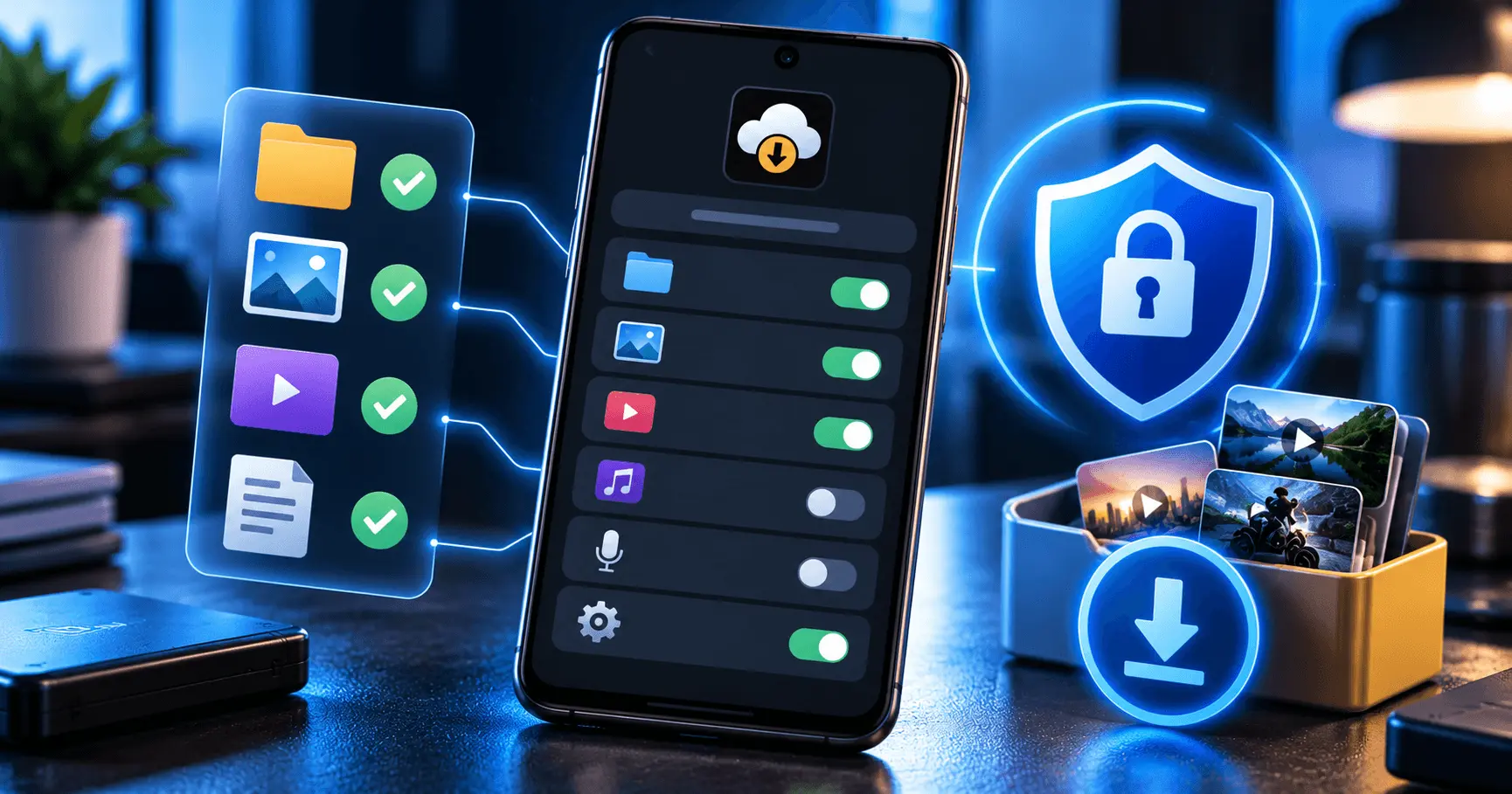
Managing download permissions on Android is an important part of keeping your phone secure while using video downloader apps. When an app needs access to save downloaded videos, Android may ask for permission depending on your device, Android version, and the way the application handles files.
Understanding which permissions are required and how to review them can help you keep control over your device. You can check an app's permissions, allow access when it is needed, and remove permissions that you no longer want to provide.
Application
Video URL Downloader
Category
Security
Reading Time
8–10 Minutes
Difficulty
Beginner
What Are Download Permissions on Android?
Download permissions control what an Android app is allowed to access when it needs to save or manage downloaded files. Depending on the Android version and the app's design, these permissions may relate to photos, videos, files, media, or selected folders.
Understanding these permissions is useful when using a video downloader because the app may need appropriate access to save downloaded content to your device. At the same time, you should avoid granting access that an app does not actually need.
- Permissions determine what parts of your device an app can access.
- Download apps may need access to save files or media.
- Android provides settings for reviewing and changing app permissions.
- Only grant permissions that are appropriate for the app's intended function.
Why Should You Review Download Permissions?
Reviewing permissions is a simple Android security habit. An app may request access when you first use a particular feature, but you can review that access later from Android settings.
For a video downloader, checking permissions can help you understand what the application is allowed to access before you download files. It also gives you an opportunity to remove access that is no longer necessary.
Privacy
Reviewing permissions helps you understand which device resources an app can access.
Security
Limiting unnecessary access can reduce the amount of device information available to an app.
Control
Android lets you review available permissions and manage them according to your needs.
Check Which Permissions a Video Downloader Uses
Before changing a permission, first check what the video downloader actually requests. The available permission names and options can vary between Android versions and device manufacturers.
Open the app's information page from Android settings and look for its permissions section. Review the listed permissions and consider whether they are related to features you use.
- Open Settings on your Android phone.
- Open Apps or App management.
- Find and select your video downloader.
- Open its Permissions section.
- Review the permissions currently allowed or denied.
Understand Storage and Media Access
Modern Android versions handle storage and media access differently from older Android releases. Instead of giving every app broad access to all files, Android may provide more limited ways for an application to access photos, videos, files, or selected locations.
This means a download application may not require broad storage access simply because it saves downloaded videos. The exact access required depends on how the application is designed and which Android APIs it uses.
Use the Minimum Access Needed
A good security practice is to allow only the access necessary for the features you want to use. If Android provides a more limited access option, consider whether it is sufficient for your needs.
Review Permissions Before Starting a Download
Before using a video downloader regularly, take a moment to review its permissions. This is especially useful when installing a new application or when an existing app changes how it handles downloaded files.
Do not automatically approve every permission request. Read the permission name and consider whether it is connected to the feature you are trying to use.
A Simple Permission Check
- Identify the permission requested by the app.
- Consider why the downloader needs that access.
- Allow the permission if it is required for the feature you want.
- Deny access when it is not necessary for your intended use.
- Review the permission again later if your usage changes.
How to Change App Permissions on Android
Android provides permission controls through the individual app settings. The exact names and layout can vary between phones, but the general process is similar.
- Open Settings on your Android device.
- Tap Apps or the equivalent app-management option.
- Select your video downloader.
- Tap Permissions.
- Select a permission that you want to review.
- Choose the available access option that matches your needs.
If a permission is required for a particular download feature, denying it may prevent that feature from working correctly. You can return to the same settings page later if you need to change the access again.
Use Limited Access When It Meets Your Needs
Some Android permission controls provide more than one level of access. When a limited option is available and works for the feature you need, it can provide a useful balance between functionality and privacy.
For example, an app may not need unrestricted access to all of your personal media simply because you want to use one particular media-related feature. The appropriate choice depends on the Android version, device, and application.
Required Access
Allow access when it is necessary for a feature you actively use and the permission matches that feature.
Limited Access
When Android offers a suitable limited-access option, consider using it when full access is unnecessary.
Check Permissions After Android or App Updates
Android updates and application updates can change how permissions are presented or how an app handles files and media. If a downloader behaves differently after an update, reviewing its permission settings can help you understand what has changed.
It is also useful to review permissions periodically rather than assuming that an app's access will always remain appropriate for your current usage.
- Check permissions after a major Android update.
- Review access when a downloader receives a significant update.
- Look for permission changes if a download feature stops working.
- Remove access that is no longer needed when appropriate.
Keep Downloaded Videos and Personal Media Separate
Permission management is only one part of download security. Keeping downloaded videos organized can also make it easier to understand which files an application is creating and where those files are stored.
Use a predictable download location when the application allows it. This makes it easier to review downloaded content, remove files you no longer need, and avoid confusing downloaded videos with personal photographs or other important media.
Practical Organization Tips
- Use a dedicated location for downloaded videos when supported.
- Review downloaded files regularly.
- Remove videos you no longer need.
- Keep important personal media backed up separately.
- Know where your downloader stores completed files.
Manage Permissions You No Longer Need
Permissions that are no longer required can be reviewed and changed from Android settings. If you stop using a particular feature of a video downloader, check whether the related access is still necessary for the way you use the application.
Keeping permissions aligned with your actual usage can make your Android device easier to manage and gives you better visibility into which applications have access to device resources.
- Review permissions for apps you no longer use regularly.
- Remove access that is no longer necessary when Android allows you to do so.
- Re-enable a permission later if a required feature needs it.
- Periodically check important applications instead of relying on old permission settings.
Be Careful With Unnecessary Permission Requests
A video downloader should have a clear reason for requesting access related to its download functionality. If an application asks for permissions that appear unrelated to the feature you want to use, take a moment to review the request before allowing it.
Permission requests alone do not determine whether an application is safe or unsafe. However, understanding why access is requested is a useful part of making informed Android security decisions.
Before Allowing a Permission
- Check what resource the permission provides access to.
- Consider whether that access is relevant to downloading.
- Review the app's purpose and the feature you are using.
- Choose the least access that reasonably supports the feature.
Use Android's Privacy and Security Settings
Android provides privacy and security controls that can help you understand how applications interact with your device. Depending on your phone and Android version, the available settings may include permission management, privacy controls, and other security-related options.
Use these settings together with the individual app permission page to maintain better control over your downloader applications.
App Permissions
Review which permissions an individual application currently has and adjust available access when necessary.
Privacy Controls
Use Android's broader privacy settings to understand and manage access to supported device resources.
Download Safely Without Giving Excessive Access
Good permission management does not mean blocking every permission. The goal is to give a downloader the access it needs for the feature you want while avoiding unnecessary access.
When downloading videos, combine sensible permission choices with other security habits such as keeping Android updated, installing applications from trusted sources, and reviewing downloaded files regularly.
- Install applications from sources you trust.
- Review requested permissions before granting access.
- Use limited access when it meets your requirements.
- Keep Android and your applications updated.
- Review permissions periodically.
- Remove unnecessary downloaded files and keep your storage organized.
Download Permission Management at a Glance
| Action | What to Check | Why It Matters |
|---|---|---|
| Review permissions | Current app access | Understand what the downloader can access |
| Allow required access | Permission related to the feature | Lets necessary download features work |
| Use limited access | Available Android options | Can reduce unnecessary access |
| Remove unused access | Permissions no longer needed | Keeps settings aligned with your usage |
| Review after updates | Changes to permissions or features | Helps maintain control over app access |
What to Do If a Download Permission Is Denied
If Android denies a permission, a video downloader may not be able to complete a feature that depends on that access. This does not necessarily mean that you should immediately grant every requested permission.
First, identify which permission was denied and determine whether it is actually required for the download feature you are trying to use. If it is necessary, you can return to the app's permission settings and review the available options.
- Identify the permission that was denied.
- Check whether the permission is required for the feature.
- Open the downloader's app permissions in Android settings.
- Review the available access options.
- Allow the appropriate access if you are comfortable with the request.
Check the App's Download Settings
Permission settings are only one part of managing downloads. A video downloader may also provide its own settings for download locations, file handling, or other download-related behavior.
Review the application's settings and understand where downloaded videos are being saved. A predictable download location makes it easier to manage files and recognize what the application has created.
Keep Download Settings Clear
- Know where completed downloads are stored.
- Use a suitable download location when available.
- Review download-related settings periodically.
- Remove old files that you no longer need.
Keep Android and the Downloader Updated
Keeping your Android device and installed applications updated is another useful security practice. Updates can include security improvements, compatibility changes, and adjustments to how applications interact with the operating system.
If permission behavior changes after an update, review the application's permissions and settings rather than assuming that the previous configuration is still appropriate.
- Install Android security and system updates when available.
- Keep the video downloader updated from a trusted source.
- Review permissions after significant updates.
- Check download behavior if an update changes how files are handled.
Simple Permission Management Habits
You do not need to check permissions every time you download a video. A few simple habits can help you maintain better control without making everyday downloading complicated.
Review
Check permissions when installing a downloader or when its behavior changes.
Limit
Use the minimum suitable access when Android provides an appropriate option.
Maintain
Keep your Android system, applications, and downloaded files organized and up to date.
Frequently Asked Questions
Conclusion
Managing download permissions on Android is a simple way to maintain better control over your device while using video downloader applications. Review what access an app requests, understand why it is needed, and choose the appropriate permission level for the features you use.
Regular permission reviews, sensible download organization, trusted applications, and current Android updates can help you maintain a more secure and manageable downloading experience.