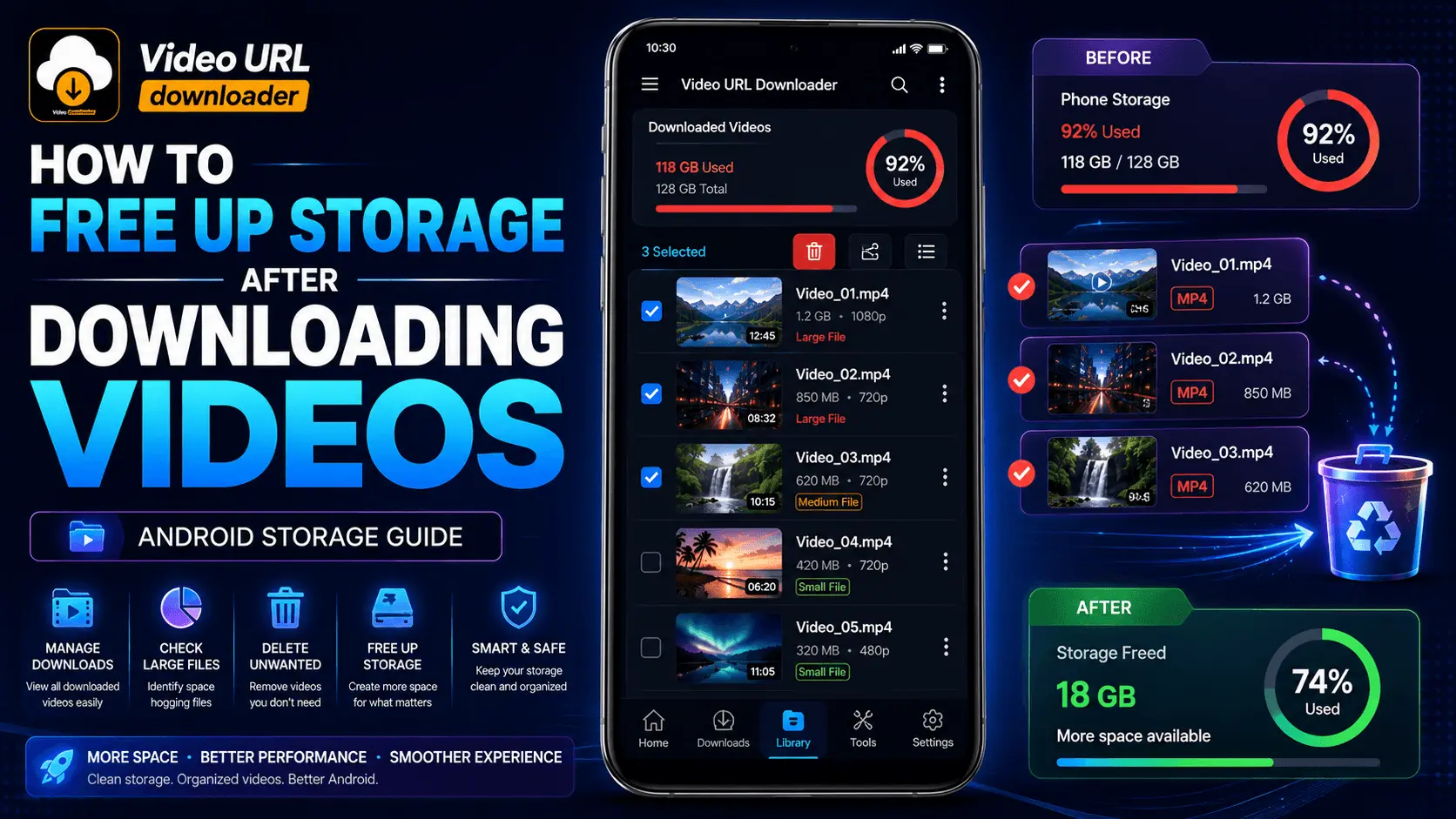
Video URL Downloader
Storage Guide
Android Storage Cleanup
Free Up Space
Downloading videos to an Android phone can be convenient when you want to watch content offline. However, video files can also consume considerably more storage than many other types of files. A few high-resolution downloads can use a noticeable amount of space, especially on phones with limited internal storage.
Over time, downloaded videos can accumulate in your Downloads folder, application-specific folders, or other locations. You may also end up with duplicate files, older videos you no longer need, or different versions of the same content.
The good news is that freeing up storage does not necessarily require deleting everything. A better approach is to review your downloaded videos, identify what you actually need, move important files somewhere else when appropriate, and remove unnecessary copies.
This guide explains practical ways to free up storage space after downloading videos on Android while helping you avoid accidentally deleting files you still want to keep.
- Why Downloaded Videos Take So Much Storage
- Check Your Available Android Storage
- Find Where Downloaded Videos Are Stored
- Review Large Video Files
- Delete Videos You No Longer Need
- Check Trash or Recently Deleted
- Continue to Part 2
Why Downloaded Videos Take So Much Storage
Video files contain a large amount of visual and audio information. Higher-resolution videos generally require more data, and longer videos can require considerably more storage than short clips.
The actual file size depends on several factors, including resolution, bitrate, encoding format, frame rate, audio quality, duration, and the way the video was compressed.
| Factor | Potential Effect on File Size |
|---|---|
| Video Resolution | Higher resolutions generally require more data. |
| Duration | Longer videos usually require more storage. |
| Bitrate | Higher bitrate can produce larger files. |
| Audio Quality | Higher-quality audio can add to the file size. |
| Compression / Encoding | Different encoding methods can produce different file sizes. |
Check Your Available Android Storage First
Before deleting anything, check how much storage is currently available on your phone. Android devices normally provide a storage-management section in Settings, although the exact menu names and layout can differ between Android versions and manufacturers.
Look for a section related to Storage in your device's Settings. This can show how much space is being used by applications, images, videos, documents, audio, and other data.
What to Check
- Total device storage.
- Currently available space.
- How much storage videos are using.
- Large applications or other categories consuming space.
- Whether the phone is approaching its storage limit.
Do not assume that downloaded videos are the only reason your storage is full. Applications, photos, documents, offline media, and other files may also contribute significantly to storage usage.
Step 1: Find Where Your Downloaded Videos Are Stored
The first practical step is locating the downloaded video files. Depending on the application and your device configuration, downloads may be stored in a standard Downloads folder or another application-specific location.
Open your phone's file-management application and look for folders such as Downloads, Movies, Videos, or folders associated with the application that created the downloads.
Folder names and locations vary between devices and applications, so avoid assuming that every Android phone uses exactly the same directory structure.
Before deleting a file, open or inspect it when necessary so you know exactly what it contains. Avoid deleting unfamiliar system files or folders simply because they appear large.
Step 2: Review Your Downloaded Videos
Once you locate your downloaded videos, review them instead of immediately deleting everything. Sorting or viewing files by size can help you identify the downloads that are using the most storage.
Look for videos that you have already watched, files that were downloaded accidentally, duplicate versions, failed or incomplete downloads, and content you no longer need.
| File Type | Suggested Action |
|---|---|
| Already watched video | Delete if you no longer need offline access. |
| Duplicate video | Keep the version you need and remove unnecessary copies. |
| Important personal video | Back it up or move it before deleting the local copy. |
| Unfinished or accidental download | Remove it after confirming it is no longer needed. |
| Video you still need offline | Keep it until you no longer need local access. |
Step 3: Identify the Largest Video Files
If you need to free up storage quickly, start by identifying your largest unnecessary files. A single large video can occupy more storage than many small documents or images.
Many file-management applications provide sorting options such as file size, date, or file type. If your file manager supports sorting by size, use it to review the largest downloads first.
A Simple Review Strategy
- Open the file manager.
- Locate the download or video folder.
- Sort files by size if the option is available.
- Review the largest files first.
- Confirm which files are no longer needed.
- Delete only the unnecessary files.
Step 4: Delete Videos You No Longer Need
After reviewing your files, delete the videos that you no longer need. Most Android file-management applications allow you to select one or more files and move them to a trash or deletion area.
The exact controls vary between file managers. Some may show Delete, while others may first move files to a trash or recently deleted area.
Make sure the file is not something you want to keep. If it is important, back it up or move it to another appropriate storage location first.
Remove Duplicate Video Downloads
Duplicate downloads are an easy way to lose storage without realizing it. You may have downloaded the same video more than once, saved multiple versions at different resolutions, or copied a video into several folders.
Compare filenames, file sizes, durations, and dates before deciding which copy to remove. When filenames are unclear, preview the files rather than relying on the filename alone.
| Situation | What to Do |
|---|---|
| Exact duplicate | Keep one copy and remove the unnecessary duplicate. |
| Different resolutions | Keep the version that best fits your needs. |
| Different edits | Compare them before deleting either version. |
| Unclear files | Preview or inspect the files before taking action. |
Step 5: Check the Trash or Recently Deleted Area
Some file-management and gallery applications do not immediately remove deleted files permanently. Instead, they may place them in a Trash or Recently Deleted area for a period of time.
If you have deleted large videos but your available storage has not changed as expected, check whether your file-management or gallery application has a trash area.
The exact behavior varies by application and device. Only permanently empty a trash area after reviewing its contents and confirming that you do not need the deleted files.
Safe Trash Cleanup
- Open the relevant file or gallery application.
- Find Trash or Recently Deleted, if available.
- Review the deleted videos.
- Restore anything you still need.
- Permanently remove the remaining unwanted files if you are sure.
Downloaded Videos vs Temporary Cache
It is important to distinguish downloaded video files from an application's temporary cache. They are not necessarily the same thing.
Clearing an application's cache may remove temporary data, but it does not necessarily delete videos that you intentionally downloaded and saved for offline access.
Likewise, deleting a downloaded video does not automatically mean that every temporary copy or cache associated with an application has also been removed.
| Data Type | What It Generally Means |
|---|---|
| Downloaded Video | A video file intentionally saved for local access. |
| Temporary Cache | Temporary application data used to improve performance or access. |
| Application Data | Data associated with the application's operation and settings. |
A Few Minutes of Cleanup Can Make a Big Difference
You do not need to delete every downloaded video to manage your storage. Start with the largest files, remove duplicates, check your Downloads folder, and keep only the videos you genuinely need offline.
The next section covers moving important videos, cloud and external storage options, organizing downloads, choosing download quality, preventing duplicate downloads, and managing storage more efficiently.
Step 6: Move Important Videos to Another Storage Location
Not every video needs to remain on your phone permanently. If you have videos that you want to keep but rarely access, moving them to another appropriate storage location can help free up internal phone storage without permanently deleting the files.
Depending on your device and workflow, you may be able to move important files to a computer, an external storage device supported by your phone, or another storage service. The available options vary by device and application.
| Storage Option | Useful When |
|---|---|
| Computer | You want a local backup and have regular access to a PC or Mac. |
| External Storage | Your Android device supports a compatible external storage solution. |
| Cloud Storage | You want access to files from multiple devices and have suitable internet access. |
| Phone Storage | You need frequent offline access to the video. |
Do not delete the local copy until you have confirmed that the important video has been successfully copied, uploaded, or backed up to the destination.
Use Cloud Storage for Videos You Want to Keep
Cloud storage can be useful when you want to keep a video without occupying permanent space on your phone. After a video has been successfully uploaded and verified, you may be able to remove the local copy from your Android device.
Keep in mind that cloud-storage services have their own storage limits, synchronization settings, and offline-access behavior. A video that is available through a cloud application is not necessarily stored locally in the same way as a downloaded file.
Before Removing a Local Copy
- Upload or copy the video to the chosen storage location.
- Wait for the transfer to finish.
- Confirm that the uploaded or copied file can be accessed.
- Check that the correct video was transferred.
- Delete the local copy only after verification.
Step 7: Organize Your Downloaded Videos
A disorganized download folder makes it difficult to know which videos you still need. Creating a simple organization system can make future storage cleanup much easier.
You can organize videos by topic, project, date, or purpose depending on how you use them. The goal is not to create a complicated folder structure but to make important files easier to identify.
| Organization Method | Example |
|---|---|
| By Date | Videos downloaded during a particular month. |
| By Topic | Education, entertainment, tutorials, or personal projects. |
| By Project | Videos related to a specific editing or creative project. |
| By Priority | Keep, review later, and delete when no longer needed. |
Use Clear File Names When Possible
Downloaded files sometimes have long or unclear names. When practical, renaming important files with descriptive names can make future storage reviews easier.
For example, instead of keeping several files with nearly identical names, you can use a simple naming approach that identifies the subject and date.
Example Naming Pattern
topic-date-version.mp4
A clear name makes it easier to distinguish files and identify duplicates during future cleanup.
Step 8: Choose the Right Download Quality
One of the simplest ways to control future storage usage is to choose a sensible download quality when the source and application provide that option.
Higher-resolution downloads can provide more detail, but they may also require more storage. If you only need a video for casual offline viewing on a phone, the highest available resolution may not always be necessary.
| Download Choice | General Storage Consideration |
|---|---|
| Lower Resolution | Usually requires less storage. |
| Medium Resolution | Can provide a balance between quality and storage. |
| High Resolution | Provides more detail but may use considerably more storage. |
| Very High Resolution | May be useful for larger displays or specific needs but can consume substantial storage. |
Choose the lowest quality that still meets your intended viewing needs rather than automatically selecting the highest setting for every download.
Step 9: Avoid Downloading the Same Video Multiple Times
Repeated downloads can gradually consume storage, especially when you forget that a copy already exists on your phone.
Before starting another download, check your existing Downloads or video folders. Search by filename, subject, or date when your file manager provides those options.
Before Downloading
- Check whether the video already exists.
- Confirm that you actually need an offline copy.
- Consider the available storage space.
After Downloading
- Give important files clear names when appropriate.
- Organize them into a suitable folder.
- Remove duplicate or unnecessary versions later.
Step 10: Review Temporary and Cached Data
Download-related applications can create temporary data or cached content while they operate. Reviewing application storage can sometimes help identify data that is no longer necessary.
However, cache and downloaded files should not be treated as the same thing. Clearing cache may remove temporary data, but it may not remove intentionally saved videos.
Android also provides different storage controls depending on the device and application. Read the description of an available cleanup option before confirming it, particularly when an option may affect application data or offline content.
| Action | Use With Care? |
|---|---|
| Delete an unwanted video | Yes — verify the file first. |
| Clear temporary cache | Usually review what the option says before proceeding. |
| Clear application data | Use caution because it can affect app settings or stored data. |
| Delete unknown system files | No — do not remove files simply because they look unfamiliar. |
How Much Storage Can Downloaded Videos Use?
There is no single file size for a video. Two videos with the same duration can have very different storage requirements because their resolution, bitrate, encoding, audio settings, and other characteristics can differ.
A useful way to think about storage is to consider the total size of all the videos you keep locally rather than focusing only on the number of files.
Simple Example
Imagine that you have several downloaded videos, each using a different amount of storage. Even if no individual file seems unusually large, their combined size can become significant.
This is why periodically reviewing old downloads can be more effective than waiting until the phone reports that storage is almost full.
Do Not Wait Until Storage Is Completely Full
Keeping a small amount of available storage can make everyday phone management easier. When storage becomes heavily used, you may have less room for new photos, videos, application updates, downloads, and other files.
Instead of treating storage cleanup as an emergency task, consider reviewing your downloaded videos periodically.
After finishing a group of downloads, spend a few minutes removing the videos you already watched or no longer need.
Create a Simple Video Storage Workflow
A consistent workflow can prevent downloaded videos from becoming an unmanaged collection of large files.
- Download only what you need.
- Choose an appropriate quality.
- Keep files organized.
- Watch or use the downloaded content.
- Delete files you no longer need.
- Move important files to another storage location.
- Periodically review the remaining downloads.
Better Download Habits Mean Less Storage Cleanup
Freeing up storage is easier when you combine cleanup with better download habits. Choosing appropriate quality, avoiding duplicate files, organizing downloads, and moving important videos away from internal storage can reduce unnecessary storage usage over time.
The next step is creating a repeatable cleanup routine so that your phone does not gradually fill up again.
The final section covers a practical storage-cleanup routine, common mistakes, a complete checklist, troubleshooting, FAQs, conclusion, and the Video URL Downloader CTA.
Create a Regular Video Storage Cleanup Routine
The easiest way to keep downloaded videos from taking over your phone storage is to make cleanup a regular habit. You do not need to wait until Android warns you that storage is almost full.
A simple review every few weeks or whenever you finish a large batch of downloads can help you identify unnecessary files before they become a storage problem.
| Cleanup Step | What to Check |
|---|---|
| 1. Check Storage | Review how much free space remains on the phone. |
| 2. Review Downloads | Look through recently downloaded videos. |
| 3. Find Large Files | Prioritize unnecessary videos using the most storage. |
| 4. Remove Duplicates | Keep only the copies or versions you actually need. |
| 5. Backup Important Files | Move or copy videos you want to keep elsewhere. |
| 6. Delete Unwanted Files | Remove downloads you no longer need. |
| 7. Check Trash | Review recently deleted content when applicable. |
A Quick Five-Minute Storage Cleanup
If you only have a few minutes, focus on the highest-impact tasks rather than trying to reorganize your entire phone.
- Open your file manager and find downloaded videos.
- Sort by file size if the option is available.
- Identify videos you have already watched.
- Remove obvious duplicates.
- Delete accidental or incomplete downloads that you no longer need.
- Check the relevant Trash or Recently Deleted area if your application uses one.
Common Video Storage Management Mistakes
Storage cleanup can become risky when files are deleted without checking what they contain. A few simple precautions can prevent unnecessary data loss.
| Mistake | Better Approach |
|---|---|
| Deleting files without checking them | Preview or inspect important files first. |
| Deleting every video immediately | Keep videos that you still need for offline access. |
| Ignoring duplicate files | Compare copies and remove unnecessary versions. |
| Assuming cache equals downloaded videos | Distinguish temporary data from saved video files. |
| Deleting important files before backup | Verify the backup or transfer first. |
| Ignoring the Trash folder | Review recently deleted content when applicable. |
| Always choosing maximum download quality | Choose quality based on your actual viewing needs. |
| Waiting until storage is completely full | Review downloads regularly. |
How to Delete Videos Safely
A safe cleanup process should always separate files you want to keep from files you are comfortable deleting.
If you are not sure what a file contains or whether you need it, do not delete it until you have checked it.
For personal or important videos, create a verified backup or move the file to another storage location before removing the copy from your phone.
Manage Downloads Before They Become a Problem
Storage management starts before a video is downloaded. Think about whether you actually need a local copy, how long you expect to keep it, and what quality is appropriate for your purpose.
Download
Save only content you need for legitimate offline use and choose an appropriate quality.
Use
Watch, review, edit, or otherwise use the downloaded video as intended.
Clean Up
Remove unnecessary files when you no longer need them locally.
Managing Videos Downloaded With Video URL Downloader
If you use Video URL Downloader to save videos for offline access, keeping your downloaded files organized can make storage management easier.
After downloading content, review where the files are stored on your Android device and decide whether each video needs to remain on local storage. Videos that are no longer required can be removed after you have confirmed they are safe to delete.
If a video is important, consider moving or backing it up before deleting the local copy. Also remember to respect the copyright and usage rights associated with the content you download.
Complete Video Storage Cleanup Checklist
- ✓ Check available Android storage.
- ✓ Find your downloaded video folders.
- ✓ Sort large files when possible.
- ✓ Review old downloads.
- ✓ Remove duplicate videos.
- ✓ Delete videos you no longer need.
- ✓ Check Trash or Recently Deleted where applicable.
- ✓ Back up important videos before deleting local copies.
- ✓ Move rarely used videos to another suitable storage location.
- ✓ Choose appropriate download quality for future downloads.
- ✓ Avoid downloading duplicate copies.
- ✓ Review temporary cache separately from downloaded files.
- ✓ Avoid deleting unfamiliar system files.
- ✓ Repeat the cleanup periodically.
Storage Did Not Increase After Deleting Videos?
If you removed videos but do not immediately see the expected increase in available storage, there may be several possible reasons.
| Possible Reason | What to Check |
|---|---|
| Files are in Trash | Check the relevant Trash or Recently Deleted area. |
| Other large files remain | Review storage categories and other video folders. |
| Duplicate copies exist | Search other folders for additional copies. |
| Application data remains | Review the application's storage information carefully. |
| Storage display has not refreshed | Give the device time to update its storage calculation. |
Frequently Asked Questions
Conclusion
Downloaded videos can quickly consume Android storage, but managing them does not have to be difficult. The most effective approach is to review your downloads regularly and keep only the files you genuinely need.
Start by checking your available storage and locating your downloaded video folders. Review large files, remove duplicates, delete videos you no longer need, and check the Trash or Recently Deleted area when applicable.
For videos you want to keep but rarely access, consider moving or backing them up to another suitable storage location. Always verify that an important file has been successfully transferred before deleting the local copy.
You can also prevent future storage problems by choosing appropriate download quality, avoiding duplicate downloads, organizing your files, and making storage cleanup part of your regular Android routine.
If you use Video URL Downloader, combining responsible downloading with regular file management can help you keep your device organized while retaining the videos you actually want available offline.
Manage Your Video Downloads More Easily
Download videos when you need them, keep important files organized, and clean up unnecessary downloads to maintain useful free storage on your Android phone.