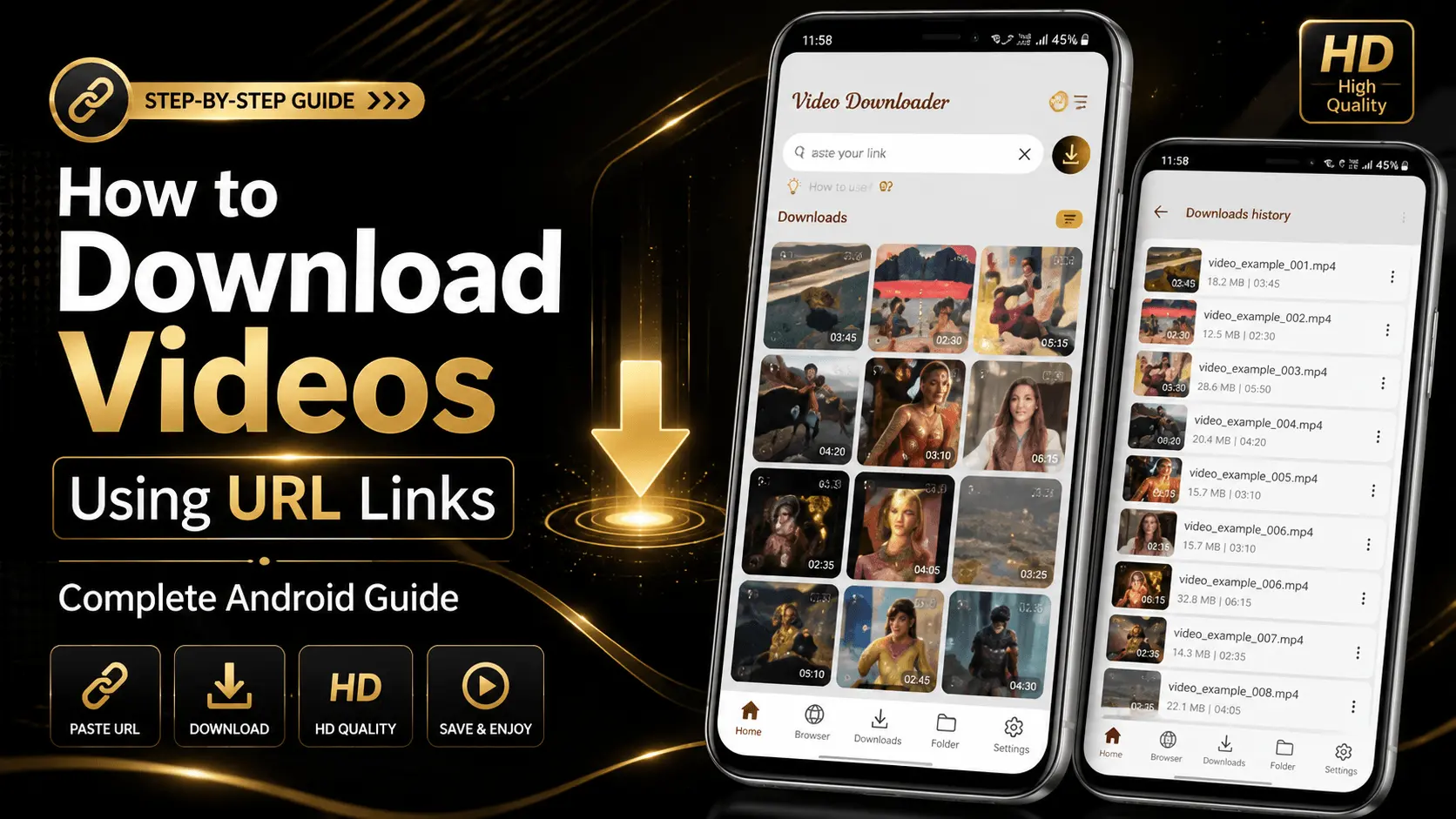
Video URL Downloader
Tutorial
Beginner
12 Minutes
Watching videos online is convenient, but there are times when an internet connection isn't available. Whether you're preparing for a long journey, studying in an area with limited connectivity, or simply want quicker access to your favorite videos, saving videos for offline viewing can be a practical solution.
Many people assume downloading videos is complicated, but in reality, the process is straightforward when a webpage or service provides a direct video URL and permits downloading. A video URL downloader helps simplify this task by allowing you to paste a video link, retrieve the downloadable media, and save it directly to your Android device.
In this guide, you'll learn what a video URL is, when downloading is appropriate, how the process works, common mistakes to avoid, and best practices for organizing your downloaded videos. The focus is on understanding the workflow rather than on any specific website or platform.
- What Is a Video URL?
- Why Download Videos Using URL Links?
- How Video URL Downloading Works
- Step-by-Step Guide
- Common Mistakes
- Best Practices
- FAQ
What Is a Video URL?
A video URL is the web address that points to a page or resource containing video content. Depending on the website or service, the URL may provide direct access to the media file or simply reference a webpage where the video is available.
Video URL downloaders analyze supported URLs and identify downloadable media when available. If downloading is permitted by the source, the application can retrieve the video file and save it to your device.
A URL usually begins with https:// followed by the website address and additional information identifying the specific video page.
Why Download Videos Using URL Links?
Downloading videos from supported sources can be useful in many everyday situations. Students often save educational material before traveling, professionals keep training videos available offline, and users download content they have permission to access so they can watch it later without relying on an internet connection.
Offline viewing also helps reduce repeated streaming, making it easier to access content when network conditions are unstable. Instead of searching for the same page repeatedly, the video is already available on your device.
| Situation | Benefit |
|---|---|
| Travel | Watch videos without internet access. |
| Learning | Keep educational videos available offline. |
| Work | Access training material anytime. |
| Slow Network | Avoid repeated buffering. |
| Personal Archive | Store videos you have permission to save. |
How Does a Video URL Downloader Work?
Although the interface is simple, several steps take place behind the scenes. After you paste a supported URL, the application checks the webpage, identifies available media resources, and prepares downloadable options when permitted.
Depending on the source, multiple resolutions may be available, allowing you to choose the option that best matches your storage space and viewing preferences.
Typical Workflow
- Copy a supported video URL.
- Paste the link into the downloader.
- Analyze the available media.
- Select an available quality.
- Choose a download location.
- Save the file for offline viewing.
Step-by-Step Guide to Download Videos Using URL Links
Once you understand what a video URL is, the downloading process becomes straightforward. Most video downloader applications follow a similar workflow. The exact interface may differ, but the overall steps remain largely the same.
Step 1 — Copy the Video URL
Open the webpage containing the video and copy its URL. Make sure the address is complete before pasting it into the downloader.
Step 2 — Paste the URL
Open your video downloader application and paste the copied link into the input field. The application will begin checking whether downloadable media is available.
Step 3 — Analyze the Video
After processing the link, supported download options such as available resolutions or file formats may be displayed, depending on the source.
Step 4 — Select the Preferred Quality
Choose the video quality that best matches your needs. Higher resolutions provide sharper visuals but require more storage space.
Step 5 — Save the Video
Select the destination folder and begin downloading. Once complete, the video can be viewed offline whenever needed.
Which Video Quality Should You Choose?
Download quality affects image clarity, storage usage, and download time. Selecting the appropriate resolution helps balance visual quality with available device storage.
| Resolution | Recommended For | Storage Usage |
|---|---|---|
| 480p | Older phones and limited storage | Low |
| 720p HD | General Android use | Medium |
| 1080p Full HD | Most modern smartphones | Higher |
| 1440p / 2K | Large displays | High |
| 4K Ultra HD | Premium devices | Very High |
Tips for Managing Downloaded Videos
Downloading videos regularly can quickly consume device storage. A simple organization strategy makes it easier to find files while preventing unnecessary storage usage.
Create Separate Folders
Organize videos into categories such as Tutorials, Personal, Entertainment, or Education.
Remove Duplicate Files
Periodically review your downloads folder and delete duplicate or outdated videos to free up storage.
Rename Important Videos
Giving meaningful file names makes searching much easier later.
Back Up Valuable Content
Consider storing important personal videos in cloud storage or on another device to avoid accidental loss.
Common Download Problems and Possible Solutions
Occasionally, downloading may not work as expected. In many cases, the issue is related to the source, network connection, or an incomplete URL rather than the downloader itself.
| Problem | Possible Solution |
|---|---|
| Invalid URL | Verify that the copied link is complete and supported. |
| No Download Option | The source may not provide downloadable media. |
| Slow Download Speed | Check your internet connection and available bandwidth. |
| Insufficient Storage | Free up storage space before downloading. |
| Interrupted Download | Retry once a stable internet connection is available. |
Download Videos Responsibly and Securely
Downloading videos should always be done responsibly. Before saving any content, make sure you have permission to download it and that doing so complies with the website's terms of service and applicable copyright laws. Respecting creators' rights helps support the people who produce valuable content.
It's also important to use trusted applications and keep them updated. Installing software from reliable sources reduces the risk of malware and improves compatibility with newer Android versions.
- Download only when permitted by the content provider.
- Keep your Android device updated.
- Use trusted applications from official stores.
- Maintain enough free storage before downloading large files.
- Regularly review and organize downloaded videos.
Choosing the Right Video URL Downloader
Different downloaders offer different features. Rather than focusing only on speed, consider the overall experience. A clean interface, reliable performance, organized downloads, and support for common Android devices all contribute to a better user experience.
| Feature | Why It Matters |
|---|---|
| Simple Interface | Easy to use for beginners. |
| Fast Link Analysis | Reduces waiting time before downloads begin. |
| Download Management | Keeps files organized and easy to locate. |
| Multiple Quality Options | Lets you balance quality and storage. |
| Regular Updates | Improves compatibility and reliability. |
Conclusion
Downloading videos using URL links can be a convenient way to access content offline when it is made available for download. Understanding how the process works, selecting the right quality, organizing downloaded files, and following responsible downloading practices all contribute to a better experience.
Whether you're preparing educational material for offline study, saving your own content, or keeping videos available while travelling, using a reliable video URL downloader can simplify the process. By following the tips in this guide, you'll be better equipped to manage your downloads efficiently and responsibly.
Frequently Asked Questions
Explore Video URL Downloader
Discover an easier way to manage supported video URL downloads, organize your saved videos, and enjoy offline viewing on your Android device.