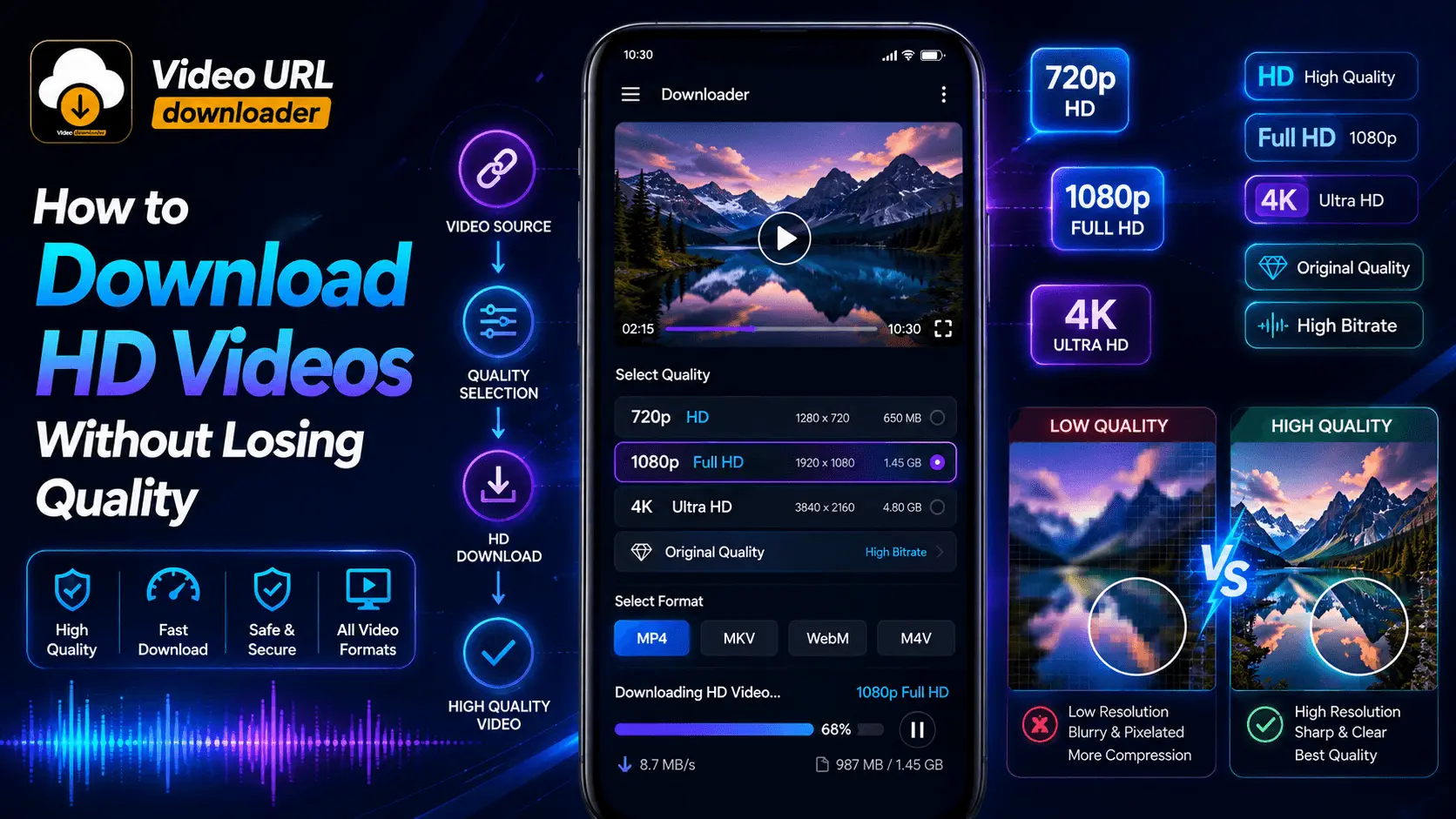
Video URL Downloader
Tutorial
Android
HD Video Quality
Downloading a video is not just about saving a file to your phone. If you want the downloaded copy to look as sharp as the original, you also need to pay attention to resolution, bitrate, source quality, format, and the download options available for that video.
A video advertised as HD may still look soft after downloading if a lower-quality stream was selected. Similarly, choosing the highest available resolution does not always guarantee the best result if the original source is already compressed or the downloader combines video and audio streams incorrectly.
Android users can avoid many of these problems by understanding how video quality works and selecting the appropriate download option before saving a video for offline viewing.
This guide explains how to download HD videos without unnecessarily reducing quality, what settings to check, how resolution and bitrate affect the final file, and how to troubleshoot common quality problems.
- What Determines Video Quality?
- Why Downloaded Videos Sometimes Look Worse
- Understand HD, Full HD, and 4K
- Check the Original Video Quality
- Choose the Correct Download Resolution
- Understand Bitrate
- Choose the Right Video Format
- Download Without Unnecessary Re-encoding
- Continue: Android Download Settings
What Determines Video Quality?
Video quality is influenced by several technical factors rather than resolution alone. Two videos can both be labeled 1080p while looking noticeably different because their bitrate, compression, frame rate, source quality, and encoding settings are different.
| Quality Factor | What It Means |
|---|---|
| Resolution | Defines the number of pixels used to form the image. |
| Bitrate | Describes how much data is used to represent the video over time. |
| Frame Rate | Determines how many frames are displayed each second. |
| Codec | Determines how video data is compressed and encoded. |
| Source Quality | Defines the quality of the original video stream. |
| Re-encoding | Can introduce additional compression and quality loss. |
Why Downloaded Videos Sometimes Look Worse
If a downloaded video does not look as good as the version you watched online, the problem may not be the download itself. The selected stream may have a lower resolution or bitrate than the original playback version.
Some platforms provide multiple versions of the same video. A player may automatically choose a suitable stream based on your connection and device, while a downloader may require you to select the desired quality manually.
Common Reasons for Quality Loss
- A lower-resolution stream was selected.
- The source video itself was already compressed.
- The downloaded file uses a lower bitrate.
- The video was re-encoded during processing.
- The downloader selected a mobile-optimized stream.
- The original video was not actually available in HD.
Understand HD, Full HD, and 4K Video Resolution
Resolution describes the number of pixels contained in a video frame. Higher resolution can provide more visible detail, but it is only one part of the overall quality equation.
| Resolution | Common Description | Typical Use |
|---|---|---|
| 720p | HD | Good quality with relatively smaller files. |
| 1080p | Full HD | Sharp quality for many modern displays. |
| 1440p | 2K / QHD | Higher-detail playback on compatible devices. |
| 2160p | 4K / UHD | Very high-resolution video and large displays. |
Do not assume that a 4K download will always look better than a 1080p download. If the 4K source has aggressive compression or the original content was created at lower quality, the difference may be smaller than expected.
Check the Original Video Quality First
You cannot create additional genuine detail that was never present in the source. If the original video was uploaded at a low resolution, downloading it as a larger file will not turn it into a true HD or 4K recording.
Before selecting a download quality, check what resolutions are actually available for the source video. If the highest available option is 720p, choosing a 1080p output through an artificial upscale does not provide the same detail as a native 1080p source.
Download the highest genuine source quality that is appropriate for your device and storage capacity rather than relying on artificial upscaling.
Choose the Correct Download Resolution
When several quality options are available, choose one based on your device, storage space, and intended use.
720p HD
A practical option when you want good quality while keeping the file size relatively manageable.
1080p Full HD
A strong everyday choice for many Android phones and tablets.
4K
Useful when the source genuinely provides 4K detail and your device or viewing setup can benefit from it.
Why Bitrate Matters for Video Quality
Bitrate refers to the amount of data used to represent a video over time. In general, a higher bitrate can preserve more visual information, although the actual result also depends on the codec, resolution, frame rate, and content.
Fast-moving scenes, detailed textures, water, smoke, foliage, and other complex visuals can require more data to maintain a clean appearance. If the bitrate is too low, compression artifacts may become easier to notice.
A well-encoded 1080p video can look better than a heavily compressed 4K video.
Choose the Right Video Format
The file format and codec can affect compatibility, file size, and playback quality. Modern Android devices support many common video formats, but compatibility can vary depending on the device and media player.
| Format / Container | General Advantage | Consideration |
|---|---|---|
| MP4 | Broad compatibility and practical file sizes. | Actual quality depends on codec and encoding settings. |
| WebM | Commonly used for web video and modern codecs. | Compatibility can vary by player and device. |
| MKV | Flexible container supporting multiple streams. | Some default Android players may have limited support. |
The container itself does not determine the entire quality of the video. Pay attention to the actual video and audio streams inside the file.
Avoid Unnecessary Re-Encoding
Re-encoding means decoding a video and encoding it again using another set of compression settings. Depending on the workflow, this can reduce quality because additional compression may be introduced.
If your goal is to preserve the source quality, avoid unnecessary conversion steps after downloading. If you only need to change the container or combine compatible streams, a workflow that avoids recompressing the actual video can help preserve the original visual data.
Quality-Preservation Principle
Whenever possible, keep the original video stream instead of repeatedly converting and recompressing the file.
Quality Starts With the Right Download Choice
Preserving video quality begins before the download starts. Check the available source resolutions, understand the difference between resolution and bitrate, select a suitable format, and avoid unnecessary re-encoding.
The next section covers practical Android download settings, choosing video and audio streams, file-size considerations, network conditions, and how to avoid common quality problems.
Choose the Right Video Quality Settings on Android
Once you understand resolution and bitrate, the next step is selecting the appropriate download quality on your Android device. A good downloader may provide several options, so you should choose based on the actual source quality rather than automatically selecting the largest file.
For everyday offline viewing, Full HD can be a practical balance between image detail and storage. If the source genuinely offers 4K and you have enough storage, a 4K download can make sense for compatible devices and larger displays.
| Use Case | Suggested Quality | Why |
|---|---|---|
| Small storage | 720p HD | Good quality with a relatively smaller file. |
| Everyday Android viewing | 1080p Full HD | Good balance of detail and file size. |
| High-resolution display | 1440p / 2K | Useful when the source provides genuine higher resolution. |
| Large display or archival copy | 4K | Preserves additional source detail when available. |
Understand Separate Video and Audio Streams
Some online video services provide video and audio as separate streams, especially at higher resolutions. A downloader may therefore need to obtain the video stream and audio stream separately and combine them into a playable file.
This process does not necessarily mean the quality has been reduced. If the original streams are preserved and combined correctly without unnecessary video re-encoding, the resulting file can retain the source video quality.
What to Check
- Confirm that the selected video stream has the desired resolution.
- Check that an appropriate audio stream is available.
- Use a compatible container for the selected streams.
- Avoid unnecessary video re-encoding.
- Verify that the final file plays correctly after combining.
Balance Video Quality and File Size
Higher-quality video generally requires more storage space, although the exact file size depends on duration, bitrate, codec, frame rate, and other encoding characteristics.
Before downloading a large 4K file, consider whether you actually need that level of quality. A 1080p version may be more practical for a phone when the display is relatively small or when storage space is limited.
720p
Suitable when storage efficiency is important and good HD quality is sufficient.
1080p
A practical everyday option for many Android users.
4K
Best reserved for genuine high-resolution sources and situations where extra detail is useful.
Use a Stable Connection for High-Quality Downloads
High-resolution videos can be significantly larger than standard-definition files. A stable internet connection can make the download process more reliable and reduce the chance of interruptions.
If a download is interrupted, a downloader that supports resumable downloads can continue from the point where the transfer stopped instead of starting again from the beginning.
For large HD or 4K downloads, use a stable Wi-Fi connection when practical and make sure your device has enough free storage before starting.
Check Available Android Storage Before Downloading
High-quality videos can occupy a considerable amount of storage. A phone with limited free space may fail during a large download even when the network connection is working correctly.
Check your available storage before starting a large download, especially when saving multiple Full HD or 4K videos.
| Download Type | Storage Consideration |
|---|---|
| Short HD video | Usually easier to manage on limited storage. |
| Long Full HD video | Can require significantly more space. |
| Long 4K video | May require substantial free storage. |
| Multiple high-quality videos | Monitor total storage consumption regularly. |
Select a Compatible Output Format
The output format should be compatible with your Android device and the media player you plan to use. MP4 is often a practical choice because of its broad compatibility, but other containers may be useful depending on the source streams and your playback requirements.
If a downloader offers multiple output options, avoid converting the video simply because another format sounds more advanced. The best format is one that preserves the required streams while working reliably with your intended player.
Choose compatibility first, then consider storage and workflow requirements. Changing the container should not automatically mean recompressing the video.
How to Avoid Quality Loss During Downloading
Preserving quality requires avoiding unnecessary processing between the original source and the final file. Whenever possible, select the genuine source stream that matches your desired quality and keep the original video data intact.
Quality-Preservation Checklist
- Choose the highest genuine source quality you need.
- Check the actual resolution rather than relying on file names.
- Consider bitrate as well as resolution.
- Avoid unnecessary video conversions.
- Use an appropriate output container.
- Do not artificially upscale low-resolution sources.
- Keep the original file when possible.
Common Android Video Download Problems
A downloaded file may sometimes appear lower quality even when you selected an HD option. Checking the source and download settings can help identify the problem.
| Problem | Possible Cause | What to Check |
|---|---|---|
| Video looks blurry | Lower-resolution stream selected | Check available resolutions. |
| 4K looks similar to 1080p | Source compression or display limitations | Check source quality and bitrate. |
| File is much larger than expected | High bitrate or large resolution | Review selected quality settings. |
| Video does not play | Unsupported codec or container | Try a compatible output format. |
| Audio is missing | Video-only stream selected | Check whether a separate audio stream is required. |
| Download stops | Network or storage issue | Check connection and available storage. |
Do Not Ignore Frame Rate
Frame rate describes how many frames are displayed each second. Common video frame rates include 24, 25, 30, 50, and 60 frames per second, although other values are also used.
If the original source provides a higher frame rate, selecting a lower frame-rate version may change the motion characteristics of the downloaded video. For fast-moving content, sports, gaming, and other motion-heavy footage, frame rate can be especially noticeable.
| Frame Rate | Typical Characteristics |
|---|---|
| 24 fps | Common cinematic motion appearance. |
| 30 fps | Common general-purpose video frame rate. |
| 60 fps | Smoother motion when the source was recorded at that rate. |
A Practical Quality Selection Strategy
Instead of automatically selecting the largest available file, use a simple decision process. First check the source quality, then consider your display, storage, and intended use.
- Check the highest genuine source resolution. Do not select an artificial upscale just because the number is larger.
- Check the frame rate. Preserve a suitable frame rate when motion quality matters.
- Compare available bitrates. A higher-quality stream may contain more visual information.
- Consider your device. Choose a quality level your Android phone can display effectively.
- Check storage before downloading. High-quality files can consume significant space.
Quality Preservation Is a Complete Workflow
Downloading an HD video without unnecessary quality loss requires more than selecting a resolution. You should consider the source stream, bitrate, frame rate, codec, container, storage, and whether the file is being re-encoded.
The final section covers a practical step-by-step HD download workflow, quality troubleshooting, recommended settings, a final checklist, FAQs, and the Video URL Downloader CTA.
Step-by-Step: How to Download HD Videos Without Losing Quality
Once you understand the factors that affect video quality, the actual download process becomes much easier. The key is to make deliberate choices instead of automatically selecting the first or largest quality option.
- Copy the video URL. Copy the link of the video you want to save from a source you are authorized to download.
- Open Video URL Downloader. Use the downloader to enter or paste the video URL.
- Wait for the available qualities to load. Review the resolutions and formats detected for the source.
- Choose the highest genuine quality you need. Select 1080p, 1440p, or 4K when that quality is genuinely available and useful for your device.
- Check video and audio availability. Make sure the selected option includes the required audio or that compatible streams can be combined.
- Check available storage. Make sure your Android device has enough free space for the selected file.
- Start the download. Begin the download and allow the process to complete without interrupting it.
- Check the final file. Play the downloaded video and confirm that the resolution, audio, and overall quality meet your expectations.
Should You Download 1080p or 4K?
The highest available resolution is not always the most practical choice. Your decision should depend on the source, your Android display, available storage, and how you plan to watch the video.
| Situation | Recommended Choice |
|---|---|
| Everyday smartphone viewing | 1080p Full HD |
| Limited storage | 720p or 1080p |
| High-resolution Android display | 1440p or 4K when genuinely available |
| Large-screen playback | Higher-resolution source when available |
| Long-term high-quality archive | Highest genuine source quality practical for storage |
Download the Original Quality Instead of Upscaling
Upscaling increases the dimensions of a video but does not recreate the fine detail that was absent from the original source. For example, converting a genuine 720p video into a 1080p file does not make it equivalent to a native 1080p recording.
If the source provides a genuine 1080p stream, choose that stream. If it provides genuine 4K, select 4K when the additional detail is useful.
Native source quality matters more than simply increasing the resolution number.
How to Troubleshoot Poor Downloaded Video Quality
If the downloaded file does not look as good as expected, work through the problem systematically instead of immediately downloading the same video again.
| Symptom | What to Check |
|---|---|
| Video looks blurry | Verify the selected resolution and source quality. |
| Fine details look blocky | Check bitrate and compression level. |
| Motion looks less smooth | Compare the selected frame rate with the original. |
| Audio is missing | Check whether video and audio are separate streams. |
| Video will not play | Check codec and container compatibility. |
| File is unexpectedly huge | Review resolution, bitrate, frame rate, and format. |
Recommended HD Download Settings for Android
There is no single quality setting that is perfect for every video. However, the following approach provides a useful starting point for everyday Android downloads.
| Setting | Practical Recommendation |
|---|---|
| Resolution | 1080p for general use; higher only when genuinely useful. |
| Frame Rate | Preserve the source frame rate when practical. |
| Bitrate | Prefer a quality stream with sufficient bitrate for the content. |
| Format | Choose a format compatible with your Android player. |
| Processing | Avoid unnecessary video re-encoding. |
| Storage | Keep sufficient free space before starting large downloads. |
Organize Downloaded HD Videos on Android
High-quality video files can quickly consume storage, especially when you download multiple long videos. Keeping downloaded files organized makes it easier to find important videos and remove files you no longer need.
- Create separate folders for different types of videos.
- Use meaningful filenames where practical.
- Review large files periodically.
- Remove duplicate downloads.
- Move important files to appropriate storage when needed.
Consider Network, Battery, and Background Downloads
High-quality downloads can take longer and consume more network data than smaller files. Large downloads can also take additional battery power, especially when the phone is actively processing or transferring data for an extended period.
If you are downloading a large HD or 4K file, consider your connection, battery level, and available storage before starting. A stable Wi-Fi connection can be practical when the file is large.
Make sure you have a stable connection, sufficient storage, and enough battery for the expected download time.
Download Videos Responsibly
Before downloading a video, make sure you have the right to save and use the content. Some online videos are protected by copyright, platform rules, or other restrictions.
A downloader can technically save a video that you are able to access, but technical access does not automatically mean you have permission to reproduce, redistribute, or reuse the content.
Download videos when you have permission or when the applicable platform and content license allow offline saving. Respect copyright and the terms that apply to the content.
HD Video Download Checklist
- ✓ Confirm that the source genuinely provides HD, Full HD, or 4K quality.
- ✓ Select the resolution you actually need.
- ✓ Check bitrate when multiple quality streams are available.
- ✓ Preserve an appropriate frame rate.
- ✓ Select a compatible video format.
- ✓ Make sure audio is included or can be combined correctly.
- ✓ Avoid unnecessary video re-encoding.
- ✓ Check available Android storage.
- ✓ Use a stable connection for large downloads.
- ✓ Verify the final video after downloading.
- ✓ Download only when you have the appropriate rights or permission.
Quick Summary: How to Preserve HD Video Quality
The simplest way to preserve video quality is to start with the best genuine source available and avoid unnecessary processing. Resolution is important, but bitrate, frame rate, codec, source quality, and encoding also affect the final result.
| Step | What to Do |
|---|---|
| 1 | Check the original video's available quality. |
| 2 | Select a genuine HD, Full HD, 2K, or 4K stream. |
| 3 | Consider bitrate and frame rate. |
| 4 | Choose a compatible format. |
| 5 | Avoid unnecessary re-encoding. |
| 6 | Ensure enough storage and a stable connection. |
| 7 | Check the final file after downloading. |
Conclusion
Downloading an HD video without unnecessary quality loss starts with choosing the right source and continues through every stage of the download process. Selecting a genuine high-resolution stream, checking bitrate and frame rate, and using a compatible format can help you preserve the quality you expect.
For most Android users, 1080p Full HD is a practical balance between image quality and storage. Higher resolutions such as 1440p or 4K can be useful when the source genuinely provides that detail and your device and storage capacity can take advantage of it.
Most importantly, avoid unnecessary re-encoding and artificial upscaling. A well-preserved original stream is generally a better starting point than repeatedly converting the same video.
With the right quality settings and a little attention to source information, you can save videos for offline viewing while retaining much more of their original visual quality.
Frequently Asked Questions
Download Videos in the Quality You Need
Use Video URL Downloader to select suitable video quality and save supported videos for offline viewing.