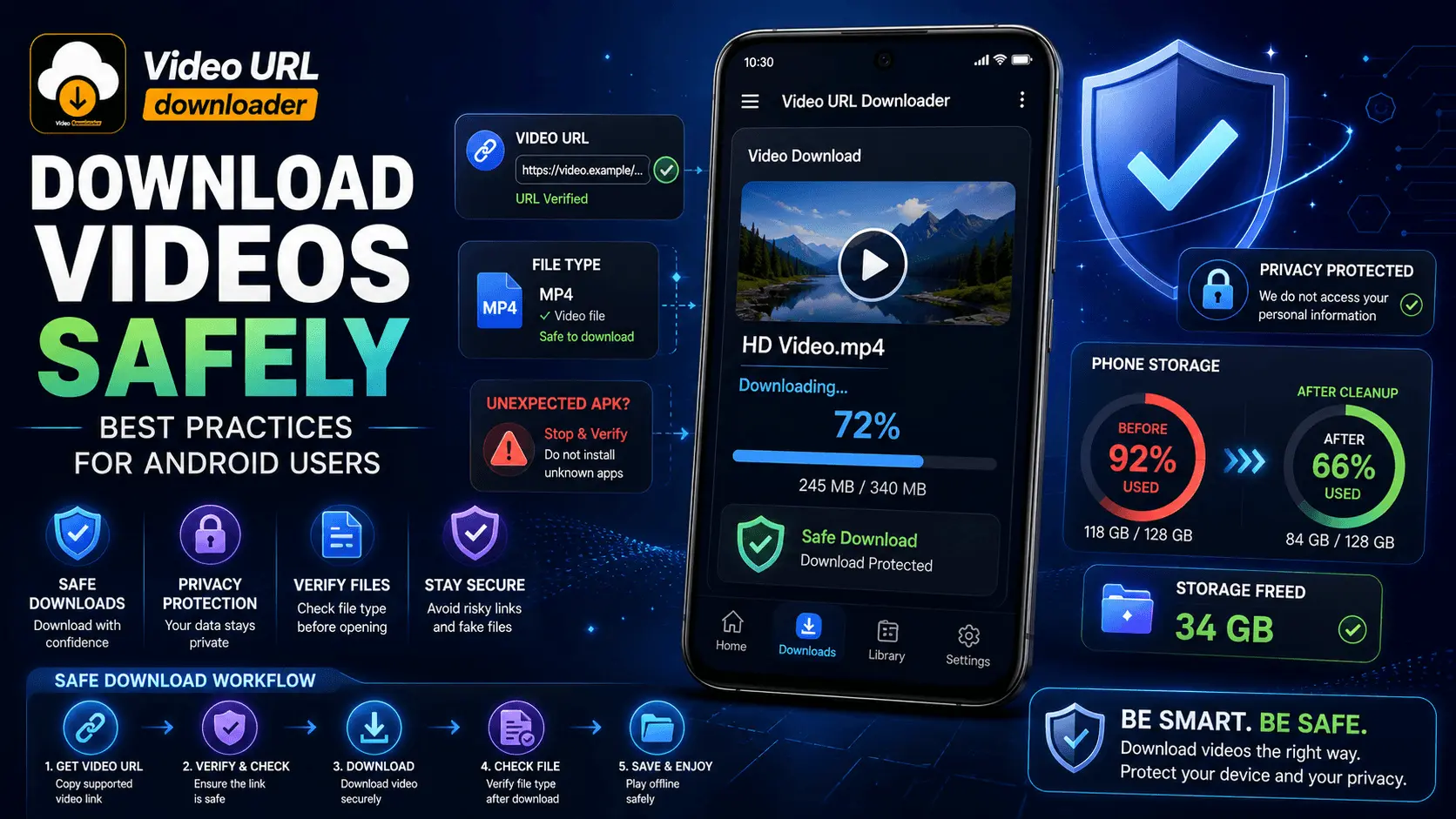
Video URL Downloader
Security
Safe Video Downloads
Android
Downloading a video to an Android phone can be convenient when you want legitimate content available for offline use. However, the safety of the download depends on more than simply pressing a download button.
Suspicious websites, misleading download buttons, unexpected file types, excessive application permissions, outdated software, and unknown APK files can all create unnecessary security or privacy risks.
The good news is that safe video downloading does not require complicated technical knowledge. A few simple habits can help you recognize suspicious downloads, protect personal information, and keep your Android device better organized and secure.
In this guide, we will cover practical best practices for downloading videos safely on Android, including checking the source, reviewing links and file types, handling APK files, managing permissions, protecting privacy, and responding to suspicious downloads.
- Why Safe Video Downloading Matters
- Check the Source Before Downloading
- Use Trusted Sources
- Check the Download Link
- Recognize Fake Download Buttons
- Verify the Downloaded File Type
- Be Careful With APK Files
- Continue to Part 2
Why Safe Video Downloading Matters on Android
A video file itself is not automatically dangerous simply because it was downloaded from the internet. The greater concern is often the source, the download process, or an unexpected file that is presented as something else.
For example, a website may display several buttons that look like download controls while some of them actually lead to advertisements, redirects, or unrelated files. A page may also claim that you need to install a special application or update before a video can be downloaded.
These situations are good reasons to slow down and verify what you are downloading before opening or installing anything.
If something unexpected appears during a video download, stop and verify it instead of automatically opening, installing, or granting permissions to it.
Step 1: Check the Source Before You Download
The first security decision happens before the download starts. Consider where the video link came from and whether you trust the source.
A familiar website or a source you already use responsibly can make it easier to understand what type of content and download you should expect. Be more cautious with links received unexpectedly through messages, comments, pop-ups, or unfamiliar websites.
| Source Situation | Recommended Approach |
|---|---|
| Known and trusted source | Review the page and download options normally. |
| Unknown website | Use additional caution before interacting with downloads. |
| Unexpected message link | Verify the sender and destination before opening. |
| Multiple redirecting pages | Stop if the download path becomes suspicious or confusing. |
| Website asks for unrelated software | Do not install it simply to obtain a video. |
Step 2: Use Trusted Download Sources
When downloading videos for legitimate offline use, prefer sources where the content and download process are clear. The website should make it reasonably understandable what you are downloading and where the resulting file will come from.
Be especially cautious with pages that use aggressive pop-ups, repeated redirects, misleading warnings, or urgent messages designed to make you click quickly.
Signs to Slow Down
- The page suddenly opens another website.
- Several buttons look like the download button.
- The page claims your phone needs an urgent update.
- A video download unexpectedly produces an APK.
- You are asked to provide unnecessary personal information.
- The site asks you to disable security protections.
Step 3: Check the Download Link
Before tapping a download control, look at the page carefully. Some websites use advertising elements that resemble legitimate download buttons.
If the page suddenly redirects to another domain, asks you to install unrelated software, or displays an unexpected warning, do not continue automatically.
Better Practice
- Read the button or link carefully.
- Check where the link leads when practical.
- Confirm that the expected video file is being downloaded.
- Stop when the download process becomes suspicious.
Avoid
- Clicking every button labeled "Download".
- Accepting unexpected browser prompts.
- Installing software to unlock a video.
- Ignoring repeated redirects.
Step 4: Recognize Fake Download Buttons
Some pages contain advertisements designed to look like download controls. A large button with a download icon does not automatically mean that it is the actual video download.
Look at the surrounding page content and confirm that the action you are selecting corresponds to the video you intend to save.
| Potential Warning Sign | What to Do |
|---|---|
| Several identical download buttons | Do not assume the largest button is the correct one. |
| Unexpected new tab | Close it if you did not intentionally open it. |
| Fake browser or device warning | Do not install software simply because the page says you must. |
| Urgent security message | Do not panic or provide information immediately. |
| Download redirects to an unrelated file | Stop and verify the source. |
Step 5: Verify the Downloaded File Type
After downloading a video, check the file name and extension when practical. Common video formats include MP4, WebM, MKV, and MOV, although compatibility varies between Android devices and applications.
The file extension alone is not a guarantee that a file is safe. However, an unexpected extension is a useful reason to stop and investigate before opening the file.
| File Type | General Purpose |
|---|---|
.mp4 |
Common video container format. |
.webm |
Video container commonly used for web video. |
.mkv |
Container capable of holding video, audio, subtitles, and other tracks. |
.mov |
Video container format commonly associated with multimedia files. |
.apk |
Android application package, not an ordinary video file. |
Step 6: Be Especially Careful With APK Files
One of the most important safety rules for video downloading on Android is understanding the difference between a video file and an Android application package.
An APK is an Android application package. It is not a normal video file. If you expect to download a video and the result is an APK, stop before opening or installing it.
A normal video download should not require you to install an unrelated APK merely to play the video.
A website may claim that you need a special video player, codec, downloader, update, or security application. Do not install an unexpected APK simply because a download page tells you to.
If you accidentally downloaded an APK that you did not intend to obtain, do not install it. Review the file, verify the source, and remove it if it is not needed.
Never Disable Security Protections Just to Complete a Download
A suspicious website may tell you to turn off a security feature, ignore a warning, or change an Android setting before continuing. Treat these requests as a reason to stop and investigate.
Security warnings are designed to help users identify potentially unwanted or risky activity. If you encounter one, understand what it is warning about before deciding what to do.
Completing a download is not worth weakening your device's security protections without understanding the consequences.
Safe Downloading Starts With Simple Habits
You do not need to become a security expert to improve your video-download habits. Checking the source, recognizing misleading buttons, verifying file types, and refusing unexpected APK installations can prevent many avoidable problems.
The next section covers application permissions, Android updates, built-in security features, privacy protection, public Wi-Fi, and downloaded-file review.
Step 7: Review Video Downloader App Permissions
Application permissions are an important part of Android security. When installing or using a video downloader, check what permissions the application requests and consider whether each permission is relevant to the feature you are using.
A video-downloading application may need access to files or media so that it can save downloaded content. However, permissions unrelated to the application's purpose deserve additional attention.
| Permission Type | What to Consider |
|---|---|
| Photos / Videos / Media | May be relevant when saving or managing downloaded media. |
| Files | May be needed by some applications for saving downloaded files. |
| Microphone | Should have a clear reason related to an actual feature. |
| Camera | Should have a clear reason related to an actual feature. |
| Contacts | Consider whether the application genuinely needs contact information. |
| Location | Consider whether location access is actually necessary. |
| SMS / Phone | Be particularly cautious when these permissions are unrelated to the application's purpose. |
Grant only the permissions that are necessary for the features you actually use. Android's available permission controls can vary by device and operating-system version.
Step 8: Keep Android and Your Apps Updated
Keeping your Android operating system and installed applications up to date is an important part of general device security.
Software updates can include security fixes, stability improvements, compatibility changes, and other corrections. An outdated device or application may miss security improvements that are available in newer versions.
Update Checklist
- Check for available Android system updates.
- Keep your browser updated.
- Update your video-downloading application when a trusted update is available.
- Keep other regularly used applications updated.
- Restart or follow the device instructions when an update requires it.
Step 9: Use Android's Built-In Security Features
Modern Android devices include security features intended to help protect users from potentially harmful applications, suspicious activity, and other risks.
Use the security features available on your device instead of disabling them simply because a website or application tells you to do so.
| Security Practice | Why It Helps |
|---|---|
| Keep device security features enabled | Maintains the protection provided by the operating system. |
| Install updates | Helps keep the device current with available security fixes. |
| Review app permissions | Helps limit unnecessary access to personal information or device features. |
| Review security warnings | Allows you to investigate unexpected or potentially risky activity. |
| Avoid unknown app installations | Reduces exposure to applications from sources you do not trust. |
Step 10: Protect Your Personal Information
A video download should not normally require you to provide sensitive personal information. Be cautious if an unfamiliar download page asks for passwords, payment information, contact details, or other data that does not appear necessary for the download.
Never enter an important account password into an unfamiliar page simply because it claims that verification is required to download a video.
Protect
- Account passwords
- Payment information
- Personal contact information
- Private photos and files
- Device access credentials
Before Sharing Information
- Ask whether the information is actually necessary.
- Check the website you are using.
- Avoid unexpected login requests.
- Do not provide passwords to unknown download pages.
- Leave the page if its behavior becomes suspicious.
Is HTTPS Enough to Make a Download Safe?
HTTPS helps protect the connection between your browser and a website, but it should not be treated as a guarantee that the website itself is trustworthy.
A malicious or deceptive website can still use HTTPS. Therefore, consider the reputation and behavior of the source, the download link, the file type, and the overall download process rather than relying on the padlock or HTTPS indicator alone.
HTTPS protects the connection; it does not automatically prove that every file or website you encounter is safe.
Step 11: Be Careful When Downloading Over Public Wi-Fi
Public Wi-Fi can be convenient, but you should be more cautious when using unfamiliar networks. Avoid entering sensitive information on suspicious pages while connected to a network you do not control.
When possible, use a trusted network for downloads and important account activity. Also verify that you are connected to the intended network rather than an unfamiliar hotspot with a misleading name.
Public Wi-Fi Safety Habits
- Prefer trusted networks when possible.
- Avoid entering sensitive credentials on suspicious pages.
- Verify the website before downloading a file.
- Keep your Android device and browser updated.
- Disconnect from unfamiliar networks when you no longer need them.
Step 12: Review Downloaded Files After the Download
Security does not stop when the download finishes. Take a moment to confirm that the resulting file is the type of file you expected.
If you intended to download a video but received a file with an unexpected extension, an APK, or another unfamiliar file, do not automatically open it.
| What You Expected | What You Received | Recommended Action |
|---|---|---|
| Video | Expected video file | Review the file and open it with a trusted media application. |
| Video | APK | Do not install it. Verify the source first. |
| Video | Unknown extension | Do not open it until you understand what it is. |
| Video | Unexpected document | Stop and verify the download source. |
| Video | Multiple unexpected files | Review the download process and remove files you do not need. |
What Should You Do With a Suspicious Download?
If a downloaded file does not match what you expected, avoid opening or installing it until you can verify what it is.
- Stop interacting with the file. Do not open or install an unexpected file immediately.
- Check the filename and extension. Confirm whether it matches the content you intended to download.
- Review the source. Think about where the download originated and whether you trust it.
- Do not disable security protections. Keep device security features enabled while investigating.
- Delete the file if it is unnecessary. Remove unexpected files you do not need.
- Seek additional help if necessary. If you believe the device may have been compromised, use trusted security and support resources.
Protect Your Privacy While Downloading Videos
Safe video downloading also involves limiting the amount of personal information you expose during the process.
You generally should not need to provide unnecessary personal details simply to save a video for legitimate offline use. Be cautious when a download page attempts to collect information unrelated to the content or service you are using.
| Privacy Practice | Why It Matters |
|---|---|
| Limit unnecessary personal information | Reduces the amount of data exposed to websites or applications. |
| Review permissions | Helps control application access to device information. |
| Avoid unknown login pages | Reduces the risk of exposing account credentials. |
| Check download sources | Helps avoid deceptive or unwanted download pages. |
| Remove unnecessary files | Keeps downloaded content organized and reduces unwanted data on the device. |
Using Video URL Downloader Responsibly
Video URL Downloader can be part of a convenient Android video-download workflow when used with appropriate sources and content.
Before downloading, verify the source and make sure the content is available for legitimate downloading. After downloading, check the resulting file, organize your videos, and remove files you no longer need.
Remember that a downloader cannot guarantee that every URL or file found on the internet is safe. Good security habits still matter when choosing the source, reviewing links, handling files, and protecting your personal information.
Download videos only when you have permission or when the source and applicable terms allow downloading. Security best practices do not override copyright, licensing, platform rules, or other applicable restrictions.
Safe Video Downloads Are a Combination of Good Habits
No single security measure can eliminate every risk. Safer downloading comes from combining several simple practices: use trusted sources, inspect download links, verify file types, avoid unexpected APK installations, review permissions, keep software updated, and protect personal information.
These habits are useful whether you download videos occasionally or use a video downloader regularly.
The final section covers common security mistakes, a complete safe-download checklist, troubleshooting, FAQs, conclusion, and the Video URL Downloader CTA.
Common Video Download Security Mistakes
Most avoidable download risks come from rushing through the process. A download button may look familiar, but taking a few seconds to check the source, file type, and permissions can make a meaningful difference.
| Common Mistake | Safer Approach |
|---|---|
| Clicking the first download button | Check the page and confirm that it is the intended download control. |
| Installing an APK to get a video | Stop and verify why an application package appeared. |
| Granting every requested permission | Review whether each permission is actually necessary. |
| Ignoring Android security warnings | Read the warning and investigate before continuing. |
| Disabling security protections | Keep security protections enabled. |
| Opening unknown downloaded files | Verify the file type and source first. |
| Entering passwords on unfamiliar pages | Do not provide credentials to an untrusted download page. |
| Using outdated software | Keep Android, your browser, and trusted applications updated. |
| Keeping suspicious files | Remove files you did not intend to download after verifying they are unnecessary. |
| Assuming HTTPS guarantees safety | Consider the source, website behavior, and downloaded file as well. |
A Simple Safe Video Download Workflow
You can make video downloading safer by following the same basic sequence every time. The process does not need to be complicated.
- Check the source. Make sure the video comes from a source you recognize or trust.
- Review the page. Look for misleading buttons, redirects, and unexpected messages.
- Start the intended download. Confirm that the action corresponds to the video you want.
- Check the resulting file. Make sure it is the expected type of file.
- Do not install unexpected applications. A video download should not normally require an unrelated APK.
- Review the file. If anything looks unusual, stop before opening it.
- Remove unnecessary files. Keep your download folder organized and delete files you do not need.
What If a Download Website Keeps Opening New Tabs?
Unexpected tabs, redirects, or pop-ups can be signs that the page is using aggressive advertising or other behavior you did not intend to trigger.
You do not need to continue clicking through every new page. If the download process becomes confusing or repeatedly redirects you to unrelated websites, stop and reconsider the source.
If you cannot clearly identify what you are downloading, do not proceed simply because the page keeps presenting new download buttons.
What to Do If You Download an APK by Mistake
If you intended to download a video but received an APK file instead, do not install it automatically.
- Do not open or install the APK.
- Check the filename and file extension.
- Review where the file came from.
- Close the suspicious download page if necessary.
- Delete the unexpected APK if you do not need it.
- If you believe you interacted with a harmful file or application, use trusted Android security and support resources for further assistance.
What If the Download Has an Unexpected File Extension?
Stop before opening the file if its extension does not match what you expected. A video downloader should produce the type of content you selected, subject to the source and downloader's supported formats.
Do not rename an unfamiliar file simply to make it look like a video. Changing the filename extension does not convert the underlying file into a different file type.
| Situation | Recommended Action |
|---|---|
| Expected MP4, received MP4 | Review the source and file before opening. |
| Expected video, received APK | Do not install it. Verify or remove it. |
| Expected video, unknown extension | Investigate the source and file type first. |
| Expected video, unexpected document | Stop and verify the download. |
What If a Video Downloader Requests Too Many Permissions?
An application should have a reasonable connection between its requested permissions and the features it provides. If a video downloader requests access that appears unrelated to downloading or managing media, take a closer look before granting it.
Android's permission controls and available options vary by device and version. Review the application's permission information and deny access that is unnecessary for the features you intend to use when your device provides that choice.
More permissions do not automatically mean an application is more useful. Consider what each permission is actually being used for.
Complete Safe Video Download Checklist for Android
- ✓ Use sources you recognize or trust.
- ✓ Check the website before selecting a download button.
- ✓ Watch for misleading buttons and unexpected redirects.
- ✓ Do not install software simply because a download page requests it.
- ✓ Remember that an APK is an Android application package, not a normal video.
- ✓ Check the downloaded file's name and extension.
- ✓ Do not open unexpected files automatically.
- ✓ Review application permissions.
- ✓ Keep Android updated.
- ✓ Keep your browser and trusted applications updated.
- ✓ Keep available security protections enabled.
- ✓ Do not enter passwords on suspicious download pages.
- ✓ Avoid sharing unnecessary personal information.
- ✓ Be careful when downloading through unfamiliar public Wi-Fi.
- ✓ Delete unnecessary or suspicious downloaded files.
- ✓ Back up important files when appropriate.
- ✓ Download content only when you have permission or the source and applicable terms allow it.
A 30-Second Safety Check Before Opening a Download
1. Source
Do I trust where this file came from?
2. File
Is this actually the type of file I expected?
3. App
Am I being asked to install something unexpected?
4. Privacy
Am I being asked for unnecessary personal information?
Frequently Asked Questions
Conclusion
Safe video downloading on Android is mainly about making careful decisions before, during, and after a download. You do not need complicated technical knowledge to build safer habits.
Start by checking the source and making sure the download page behaves as expected. Be careful with misleading download buttons, unexpected redirects, and pages that ask you to install unrelated software.
Always pay attention to the file you receive. If you expected a video but received an APK or another unexpected file type, stop before opening or installing it. Review application permissions and avoid granting access that is not necessary for the features you use.
Keeping Android, your browser, and trusted applications updated also contributes to general device security. When downloading through unfamiliar networks, especially public Wi-Fi, take additional care with sensitive information and unfamiliar websites.
Finally, remember that no downloader or security measure can guarantee that every URL or file on the internet is safe. Good source selection, careful file handling, privacy awareness, and responsible downloading remain important.
If you use Video URL Downloader, combine the convenience of downloading with these security habits to maintain a safer and more organized Android video-download workflow.
Download Videos With Better Security Habits
Use Video URL Downloader for your Android video-download workflow while checking sources, reviewing files, protecting your privacy, and following safe download practices.