Mahadev HD Wallpaper
Wallpaper Guide
Android
Beginner
A high-resolution wallpaper can completely change the appearance of an Android phone. A detailed Mahadev image can look sharp and impressive on a modern display, but simply downloading an HD or 4K image does not always guarantee that it will remain sharp after you set it as your wallpaper.
Android phones have different screen sizes, aspect ratios, resolutions, and launcher behaviors. When a wallpaper does not match the display correctly, the system may crop, zoom, or reposition parts of the image. In some cases, the result can look softer or less detailed than the original image.
The good news is that most wallpaper-quality problems can be reduced by choosing an appropriate image, understanding how cropping works, and checking the preview before applying the wallpaper.
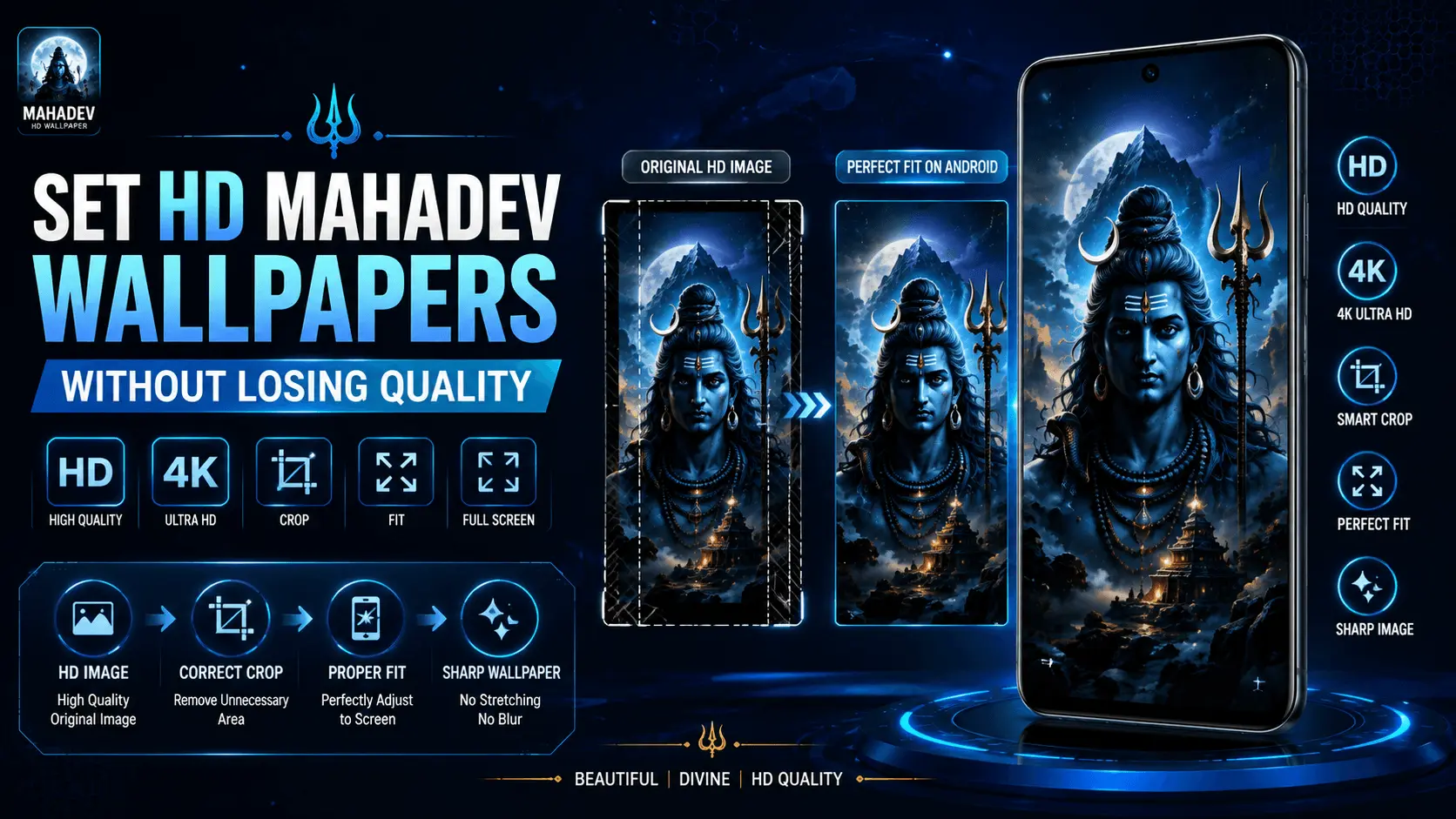
In this guide, you will learn how to set HD Mahadev wallpapers on Android while preserving as much sharpness and detail as possible.
- Why HD Wallpapers Sometimes Look Blurry
- Choose the Right Wallpaper Resolution
- Understand Your Android Screen
- Check the Wallpaper Aspect Ratio
- Avoid Excessive Cropping
- Prepare the Image Before Setting It
- Continue: Correct Wallpaper Setup
Why HD Wallpapers Sometimes Look Blurry on Android
One of the most common mistakes is assuming that the words "HD" or "4K" automatically mean an image will look perfect on every phone. Image quality depends on several factors, including the original resolution, display resolution, image proportions, and how much the wallpaper is cropped or scaled.
For example, a very wide image may need substantial cropping when used on a tall smartphone display. Important parts of the Mahadev artwork may be moved outside the visible area, while the remaining image is enlarged to fill the screen.
Wallpaper quality is not determined by resolution alone. The relationship between the image and your phone's display also matters.
Common Reasons a Wallpaper Loses Its Sharp Appearance
| Cause | What Can Happen |
|---|---|
| Low-resolution source | The image may appear soft when enlarged. |
| Wrong aspect ratio | The phone may crop a large portion of the image. |
| Excessive zoom | Fine details may become less sharp. |
| Repeated image editing | Saving an image multiple times can affect its quality depending on the format and settings. |
| Launcher cropping | The wallpaper may be repositioned or enlarged automatically. |
Choose the Right Wallpaper Resolution
Start with an image that has enough resolution for your phone's display. A larger source image gives the system more information to work with when fitting the wallpaper to the screen.
However, downloading the largest possible file is not always necessary. Extremely large images can consume additional storage without providing a visible advantage on a lower-resolution display.
| Wallpaper Type | Typical Use | Consideration |
|---|---|---|
| HD | Everyday Android phones | Good balance between quality and file size |
| Full HD | Many modern smartphones | Useful for detailed portrait wallpapers |
| 2K | High-resolution displays | Provides additional image detail |
| 4K | High-resolution and large displays | Larger file size and not always necessary |
Understand Your Android Screen Resolution
Before choosing a wallpaper, it helps to know your phone's display resolution. Android devices are available in many different resolutions, so there is no single wallpaper dimension that is perfect for every device.
You can usually find display information in your phone's specifications or device settings. Once you know the screen resolution, you can select a wallpaper with sufficient detail rather than relying only on a generic HD label.
Simple Selection Rule
Choose a high-quality portrait wallpaper with enough resolution to cover your display without requiring excessive enlargement.
Check the Wallpaper Aspect Ratio
Aspect ratio describes the relationship between an image's width and height. Smartphone displays are generally tall and narrow compared with desktop monitors or televisions.
This is why a portrait-oriented Mahadev wallpaper is often easier to fit on an Android phone than a wide landscape image.
Portrait Wallpaper
- Better suited to smartphone displays
- Usually requires less horizontal cropping
- Useful for full-screen devotional artwork
- Easier to position important subjects
Wide Landscape Wallpaper
- May require substantial cropping
- Important details can move outside the visible area
- May need additional positioning
- Better suited to wider displays
Choose Mahadev Wallpapers With Good Composition
Resolution is only one part of a good wallpaper. The composition of the image is also important, especially when Android automatically crops the wallpaper.
If the main subject is placed close to the center and there is enough surrounding space, you have more flexibility when positioning the image. A tightly cropped portrait may lose important details when the phone adjusts it to fit the screen.
A clear central subject, enough background space, balanced composition, and important details that remain visible after cropping.
Avoid Excessive Cropping
Cropping is often necessary because wallpaper dimensions and phone displays do not always match perfectly. The problem occurs when too much of the original image must be removed.
Before applying a Mahadev wallpaper, check the preview carefully. Look at the position of the face, trishul, crescent moon, mountains, and other important elements. Make sure the main artwork remains visible.
Before Applying
- Open the wallpaper preview.
- Check whether the image is being zoomed.
- Look at the edges for unwanted cropping.
- Position the main subject correctly.
- Confirm the preview before applying it.
Prepare the Image Before Setting It
If the original wallpaper does not fit your phone well, you can prepare a suitable copy before setting it. The goal is to make the image easier for Android to display without forcing unnecessary zooming or stretching.
Keep the original high-quality file untouched and make a separate copy if you need to crop or resize the image. This gives you a backup of the original artwork if you want to create another version later.
| Action | Purpose |
|---|---|
| Crop | Remove unnecessary areas while maintaining the main subject. |
| Resize | Create a suitable version for the target display. |
| Reposition | Keep important Mahadev artwork visible. |
| Save a copy | Preserve the original high-quality image. |
How to Set an HD Mahadev Wallpaper Correctly
After selecting a suitable high-resolution image, the next step is applying it correctly. Android phones may provide different wallpaper options depending on the device and launcher, but the general process is similar.
Basic Android Wallpaper Setup
- Open your wallpaper collection or wallpaper application.
- Select the HD Mahadev wallpaper you want to use.
- Open the wallpaper preview.
- Adjust the position if the phone provides a crop or zoom control.
- Check that the important parts of the artwork remain visible.
- Choose the home screen, lock screen, or both when the option is available.
- Apply the wallpaper and check the final result.
Always Check the Wallpaper Preview
The preview screen is one of the most useful steps when setting a wallpaper. The original image may look perfect in your gallery, but the wallpaper preview shows how Android intends to position it on the actual screen.
Pay particular attention to the main subject. If the face of Mahadev, trishul, crescent moon, or another important element is partially outside the visible area, reposition the image before confirming the wallpaper.
| Preview Check | What to Look For |
|---|---|
| Main Subject | Mahadev remains clearly visible. |
| Edges | Important artwork is not unnecessarily cropped. |
| Zoom | The image is not enlarged more than necessary. |
| Position | The composition looks balanced. |
| Icons and Clock | Important screen elements do not hide key artwork. |
Home Screen vs Lock Screen Wallpaper
A wallpaper that looks excellent on the lock screen may not work equally well on the home screen. App icons, widgets, the clock, and other interface elements can cover parts of the image.
Lock Screen
- Detailed artwork can work well.
- The clock may overlap part of the image.
- Central composition is often effective.
- Check the clock position before applying.
Home Screen
- Keep app icons in mind.
- A less busy background can improve readability.
- Important details should not sit behind icons.
- Dark or simple areas can improve icon contrast.
Avoid Stretching the Mahadev Wallpaper
Stretching changes the proportions of the original image. A devotional artwork can look unnatural if the subject becomes wider or narrower than intended.
Instead of forcing an image to fill the display by stretching it, use a crop that preserves the original proportions. A small amount of unused background is generally preferable to visibly distorted artwork.
Preserve the original aspect ratio whenever possible. Crop excess areas rather than stretching the complete image.
HD vs 4K Mahadev Wallpapers: Which Should You Choose?
Both HD and 4K wallpapers can look excellent on Android. The best option depends on your phone's display, storage capacity, and the quality of the original image.
| HD Wallpaper | 4K Wallpaper |
|---|---|
| Smaller file size | Larger file size |
| Quick to download | May require more storage |
| Excellent for many phones | Useful for high-resolution displays |
| Lower storage requirement | More source detail available |
| Good everyday choice | Useful when extra resolution is beneficial |
A 4K file does not automatically look better if the image is poorly composed or heavily cropped. The source quality and the way the image fits the display are equally important.
Tips for Mahadev Wallpapers on AMOLED Displays
Many modern Android phones use OLED or AMOLED displays. These screens can produce very deep blacks, making dark devotional wallpapers especially attractive.
Mahadev artwork with dark blue, black, and subtle glowing elements can create strong contrast while keeping the home screen visually clean.
Dark Background
Helps create strong contrast with bright devotional elements.
Blue Highlights
Can complement the traditional visual association of Mahadev artwork with cool tones.
Minimal Details
Helps keep icons and widgets easy to see on the home screen.
Avoid Unnecessary Image Compression
If you repeatedly resize, edit, export, and re-save a wallpaper, you may eventually reduce its visual quality depending on the image format and export settings.
For the best result, keep the original high-quality wallpaper and create a separate version when you need to crop or resize it. This gives you a clean source to return to whenever you want to create another version.
Recommended Workflow
Original HD/4K Image → Create Copy → Crop or Resize → Save High-Quality Version → Set as Wallpaper
Understand Scaling and Zooming
Scaling changes the size of an image to fit a particular display. Some degree of scaling is normal when applying wallpapers, but excessive enlargement can make fine details appear softer.
If the wallpaper preview appears heavily zoomed, try another image with a more suitable aspect ratio or use a version that is already prepared for smartphone displays.
| Situation | Better Choice |
|---|---|
| Image is much wider than the phone | Choose a portrait version. |
| Image is too small | Use a higher-resolution source. |
| Main subject is cropped | Reposition or choose another composition. |
| Image looks stretched | Preserve the original aspect ratio. |
Position the Main Mahadev Artwork Carefully
Positioning is especially important when the wallpaper contains a detailed central subject. Try to keep the most important elements within the safe visible area of the screen.
If the phone provides a movement or crop control, slowly reposition the image rather than immediately accepting the default placement.
Keep the main subject comfortably inside the visible screen area and leave enough background around it to accommodate minor cropping.
Step-by-Step Method to Set a Sharp Mahadev Wallpaper
Once you have selected a suitable HD or 4K Mahadev wallpaper, use the following workflow to reduce unnecessary cropping, zooming, and quality loss.
- Choose a high-resolution image. Select an original HD, Full HD, 2K, or 4K wallpaper that provides enough detail for your phone.
- Prefer portrait orientation. Smartphone-friendly portrait images usually require less cropping than wide images.
- Check the composition. Make sure Mahadev and other important artwork are positioned where they can remain visible.
- Open the wallpaper preview. Do not apply the image immediately. First check how Android is positioning it.
- Adjust the crop. If your device provides positioning controls, move the image until the main subject looks balanced.
- Avoid unnecessary zoom. Excessive enlargement can make small details appear softer.
- Check the home screen. Make sure icons and widgets do not cover important parts of the artwork.
- Apply and inspect. After setting the wallpaper, check the final screen rather than judging the image only from the gallery preview.
How to Fix a Blurry Mahadev Wallpaper
If your wallpaper looks less sharp after applying it, do not immediately assume that the original image is poor quality. Check whether Android is enlarging or cropping the image excessively.
| Problem | What to Try |
|---|---|
| Wallpaper looks blurry | Use a higher-resolution original image. |
| Image is heavily zoomed | Choose a more suitable portrait composition. |
| Mahadev is partially cropped | Reposition the wallpaper or select another image. |
| Artwork looks stretched | Use an image with a compatible aspect ratio. |
| Home-screen icons hide the artwork | Choose a simpler composition or reposition the image. |
| Lock screen looks different | Check the lock-screen preview separately. |
Common Mahadev Wallpaper Mistakes to Avoid
Using a Small Image
A small image may need significant enlargement to cover a modern smartphone display, which can reduce perceived sharpness.
Ignoring the Preview
Applying a wallpaper without checking its crop can hide important parts of the artwork.
Excessive Zoom
Enlarging the wallpaper too much can reduce the apparent detail and create an unnecessarily tight composition.
Using the Wrong Aspect Ratio
A wide image may require significant cropping when placed on a tall smartphone screen.
HD Mahadev Wallpaper Quality Checklist
- ✓ Use a high-resolution original image.
- ✓ Prefer a portrait-oriented wallpaper for smartphones.
- ✓ Check the image aspect ratio.
- ✓ Keep the main Mahadev artwork inside the visible area.
- ✓ Avoid excessive zooming.
- ✓ Preserve the original aspect ratio.
- ✓ Check both home-screen and lock-screen previews.
- ✓ Keep an original copy before editing.
- ✓ Avoid unnecessary repeated compression.
- ✓ Choose HD or 4K according to your device and storage needs.
Which Mahadev Wallpaper Should You Choose?
There is no single wallpaper resolution or style that is perfect for every Android phone. The best choice depends on your display, the composition of the image, and how you want your home or lock screen to look.
| Your Priority | Recommended Choice |
|---|---|
| Balanced quality and storage | High-quality HD or Full HD wallpaper |
| Maximum source detail | High-quality 4K wallpaper |
| AMOLED appearance | Dark Mahadev artwork with strong contrast |
| Clean home screen | Minimal composition with open background areas |
| Detailed lock screen | Portrait artwork with a strong central subject |
Final Tips for Better Wallpaper Quality
A few simple habits can help you maintain a sharp and attractive wallpaper experience over time.
Start With Quality
Always begin with the best available source image instead of trying to improve a very small or heavily compressed image later.
Fit Before Applying
Use the preview to check the crop and positioning before confirming the wallpaper.
Protect the Original
Keep an original copy of your high-quality wallpaper before making any crop or resize changes.
Match Your Display
Choose a wallpaper resolution and composition that work naturally with your Android phone's screen.
Conclusion
Setting a high-quality Mahadev wallpaper on Android is not simply a matter of choosing the largest image available. Resolution, aspect ratio, composition, cropping, scaling, and screen layout all influence how the final wallpaper appears.
Start with a high-quality portrait image, preferably one with enough resolution for your device. Check the wallpaper preview carefully, position the main artwork correctly, and avoid unnecessary zooming or stretching.
Whether you choose an HD, Full HD, 2K, or 4K Mahadev wallpaper, the best result comes from matching the image to your display rather than relying on resolution alone.
With these simple steps, you can keep the important details of your Mahadev wallpaper visible and create a cleaner, sharper Android home screen or lock screen.
Frequently Asked Questions
Find a Beautiful Mahadev Wallpaper for Your Android
Explore HD Mahadev and Lord Shiva wallpapers designed to look sharp and beautiful on modern Android displays.